---
title: Google Ads Conversion Tracking
description: Google Ads Conversion Tracking
---
[Skip to content](https://support.hellowalla.com/google-ads-conversion-tracking#main-content)
English
Show submenu for translations

Open main navigation
Close main navigation
- English
Show submenu for translations
How can we help you?
- There are no suggestions because the search field is empty.
1. [Walla Knowledge Base](https://support.hellowalla.com/?hsLang=en)
2. [Integrations](https://support.hellowalla.com/integrations?hsLang=en)
July 1, 2026
# Google Ads Conversion Tracking
## See exactly which Google Ads are driving real bookings and purchases in Walla.
**Overview**
Walla now supports Google Ads conversion tracking, so when a potential client clicks one of your Google ads and completes a purchase in the Walla widget, that conversion is automatically sent back to Google. Your Google Ads dashboard will accurately reflect which ads are driving signups and sales — giving you real data to make smarter decisions about your ad spend.
**Why this matters:** Previously, conversion data was lost when a user clicked your ad and was taken into the Walla booking widget to complete their purchase. Google never received the signal that a conversion happened, making it nearly impossible to know which ads were actually working. This update closes that gap completely.
**Requirements**
To take advantage of Google Ads conversion tracking, your studio needs all three of the following:
| **Requirement** | **Details** |
| --- | --- |
| Google Ads integration connected | Your Google Ads account must be connected to Walla |
| Google Pixel set up | The tracking pixel must be installed on your website |
| Active ad campaign running | You need at least one active Google Ads campaign |
If all three are in place, conversion tracking is active automatically — no additional setup required on your end.
**How It Works**
Here's what happens from the moment a potential client sees your ad to when the conversion reaches your Google Ads dashboard:
**1. Client searches and clicks your ad**
A potential client searches for something like "pilates classes near me" and clicks your sponsored Google result.
**2. They land on your website with a tracking ID**
Google appends a unique identifier (called a GCLID) to the URL when they arrive on your site. This ID links their session to your specific ad.
**3. They click a plan link and enter the widget**
When they click through to a plan or booking page, the GCLID carries over into the Walla widget.
**4. They complete a purchase**
The client finishes their purchase in the widget as normal.
**5. Conversion is sent to Google**
Walla automatically sends the conversion signal back to Google. The purchase now appears as a confirmed conversion in your Google Ads dashboard, credited to the ad that drove it.
**Setting Up Conversion Tracking in Google Ads**
Before Walla can pass conversions back to Google, you need to create a conversion action in your Google Ads account. Follow the steps below or watch the video walkthroughs to get set up.
### **Step 1 — Create a Google Ads Conversion Action**
A conversion action tells Google what counts as a successful conversion — in this case, a purchase completed in the Walla widget.
📹 [How to Create a Google Ads Conversion Action (Video Walkthrough)](https://www.loom.com/share/e5b999a0da4d4cc89e4a1894a306e86c)
- Log in to your Google Ads account
- Navigate to Goals → Conversions → Summary
- Click + New conversion action
- Select Website as the conversion source
- Follow the prompts to define your conversion action (e.g. "Purchase")
- Save your conversion action
### **Step 2 — Copy the Conversion Action Event Snippet**
Once your conversion action is created, you'll need to copy the event snippet and add it to the relevant pages on your website alongside the Walla widget embed code.
📹 [How to Copy a Conversion Action Event Snippet (Video Walkthrough)](https://www.loom.com/share/ea8d726b43994516a94a0b01861e9aa3)
- In Google Ads, open your newly created conversion action
- Select Use Google Tag Manager or Add the tag yourself
- Copy the event snippet code
- Add the snippet to the page on your website where your plan link lives
**Important:** If you add a plan link to your website without also adding the tracking widget embed code to that same page, Google will not be able to receive the conversion signal. Both are needed for accurate attribution.
**Using Plan Direct Links with Conversion Tracking**
When using a plan direct link on your website or in an ad, you also need to add the Walla tracking widget embed code to that same page. This ensures Google can track purchases from your ads for conversion reporting.
To get your plan's direct link and the tracking widget embed code:
- Go to Plans in your Walla dashboard
- Click the three-dot menu on any plan and select Direct Link
- Copy the Direct Link to use in your ad or on your website
- Click Widget Embed Code and copy that code to add to the same page
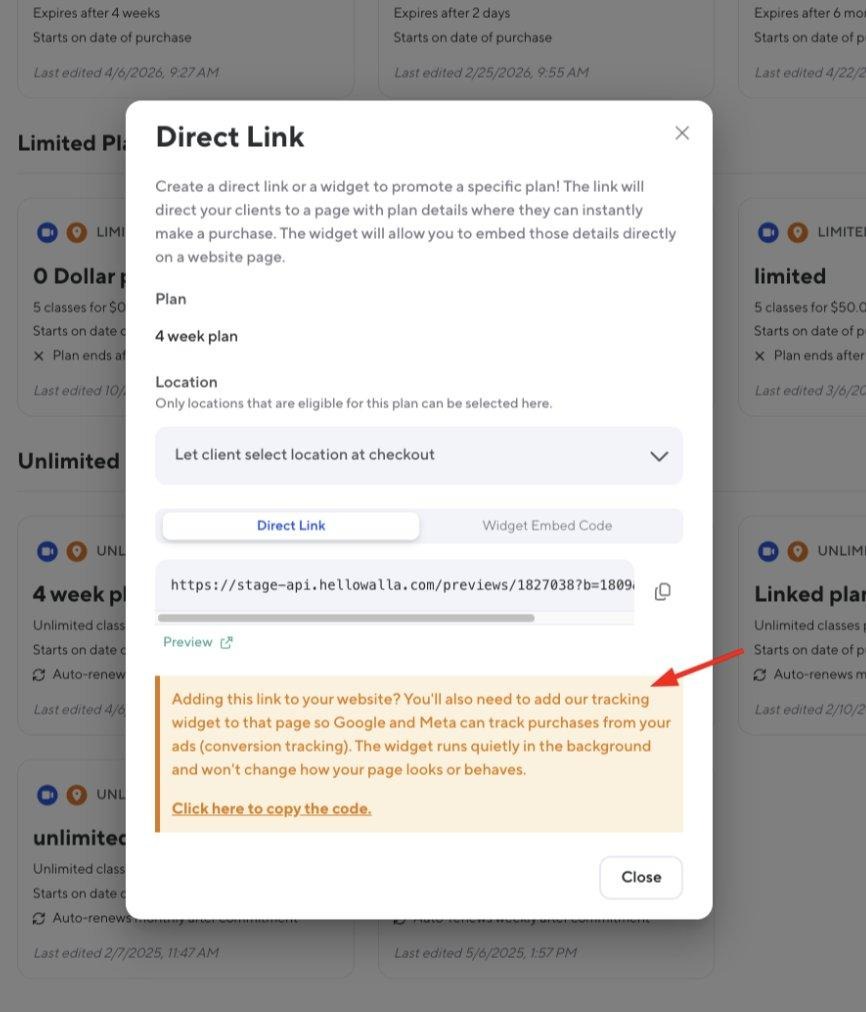
*Plan Direct Link modal — copy the Direct Link and add the tracking widget embed code to the same page for full conversion tracking*
**Validating Conversions in Google Ads**
After a real purchase has been made through one of your Google ad links, verify the conversion was tracked:
- Log in to your Google Ads account
- Navigate to Goals → Conversions → Summary
- Look for recent conversion activity tied to your active campaigns
- Allow up to 24–48 hours for conversion data to appear after a purchase
**Tip:** Test this by making a real purchase through one of your Google ad links and checking your Google Ads dashboard the following day to confirm the conversion was received.
**Frequently Asked Questions**
**Does this work automatically or do I need to set something up?**
You need to create a conversion action in Google Ads and copy the event snippet to your website first. Once that's in place and you have your Google Ads integration connected, pixel installed, and an active campaign running, conversion tracking is fully active.
**What is a GCLID?**
GCLID stands for Google Click ID. It's a unique identifier that Google appends to your URL when someone clicks a sponsored ad. Walla captures this ID during checkout and sends it back to Google so the conversion can be attributed to the correct ad.
**Will this affect how my widget looks or functions for clients?**
No — the tracking happens entirely in the background. Clients won't see anything different during their booking or checkout experience.
**What if I use a plan direct link on my website instead of the full widget?**
If you're using a plan direct link, you also need to add the Walla tracking widget embed code to that same page. Without it, Google won't receive the conversion signal. You can find the embed code in the same Direct Link modal — just click the Widget Embed Code tab.
**How long does it take for conversions to appear in Google Ads?**
Conversion data typically appears in your Google Ads dashboard within 24–48 hours after a purchase is made.
**Do I need this for Meta (Facebook/Instagram) ads too?**
The tracking widget embed code also supports Meta conversion tracking. Adding it to any page where you're linking to a plan will enable attribution for both Google and Meta ad campaigns.
**Quick Reference**
| **Setting** | **Details** |
| --- | --- |
| Setup required | Yes — create a conversion action in Google Ads + add event snippet to your website |
| Video: Create conversion action | loom.com/share/e5b999a0da4d4cc89e4a1894a306e86c |
| Video: Copy event snippet | loom.com/share/ea8d726b43994516a94a0b01861e9aa3 |
| Who it applies to | Studios with Google Ads connected + pixel installed + active campaign |
| Where to see conversions | Google Ads → Goals → Conversions → Summary |
| Conversion data delay | Up to 24–48 hours after purchase |
| Plan direct links | Add tracking widget embed code to the same page for full attribution |
| Client experience | Unaffected — tracking is invisible to clients |
- [Getting Started with Walla](https://support.hellowalla.com/getting-started-with-walla?hsLang=en#main-content)
- [🤝 Onboarding](https://support.hellowalla.com/getting-started-with-walla?hsLang=en#onboarding)
- [Migrations](https://support.hellowalla.com/getting-started-with-walla?hsLang=en#migrations)
- [Products](https://support.hellowalla.com/products?hsLang=en)
- [Branded App](https://support.hellowalla.com/branded-app?hsLang=en)
- [Classes](https://support.hellowalla.com/classes?hsLang=en)
- [Managing Your Studio](https://support.hellowalla.com/managing-your-studio?hsLang=en)
- [Integrations](https://support.hellowalla.com/integrations?hsLang=en)
- [Enrollments](https://support.hellowalla.com/enrollments?hsLang=en)
- [WallaPredict](https://support.hellowalla.com/wallapredict?hsLang=en)
- [Franchise Features](https://support.hellowalla.com/franchise-features?hsLang=en)
- [Clients](https://support.hellowalla.com/clients?hsLang=en)
- [Sales & Marketing Center](https://support.hellowalla.com/sales-marketing-center?hsLang=en#main-content)
- [Sales Pipeline](https://support.hellowalla.com/sales-marketing-center?hsLang=en#sales-pipeline)
- [Conditions](https://support.hellowalla.com/sales-marketing-center?hsLang=en#conditions)
- [Builds](https://support.hellowalla.com/sales-marketing-center?hsLang=en#builds)
- [Google and Meta Integration](https://support.hellowalla.com/sales-marketing-center?hsLang=en#google-and-meta-integration)
- [Journeys and Audiences](https://support.hellowalla.com/sales-marketing-center?hsLang=en#journeys-and-audiences)
- [Virtual](https://support.hellowalla.com/virtual?hsLang=en)
- [Payments](https://support.hellowalla.com/payments?hsLang=en#main-content)
- [💰 Payments](https://support.hellowalla.com/payments?hsLang=en#payments)
- [Walla App](https://support.hellowalla.com/walla-app?hsLang=en)
- [Packs & Plans](https://support.hellowalla.com/packs-plans?hsLang=en)
- [Appointments](https://support.hellowalla.com/appointments?hsLang=en)
- [For Studio Clients](https://support.hellowalla.com/for-studio-clients?hsLang=en#main-content)
- [Using the Walla App](https://support.hellowalla.com/for-studio-clients?hsLang=en#using-the-walla-app)
- [Your Walla Login](https://support.hellowalla.com/for-studio-clients?hsLang=en#your-walla-login)
- [Using Walla Widgets](https://support.hellowalla.com/for-studio-clients?hsLang=en#using-walla-widgets)
- [Staff](https://support.hellowalla.com/staff?hsLang=en)
- [Reports](https://support.hellowalla.com/reports?hsLang=en)
- [Client Communication](https://support.hellowalla.com/client-communication?hsLang=en)
- [Memberships](https://support.hellowalla.com/memberships?hsLang=en)
- [Walla Websites](https://support.hellowalla.com/walla-websites?hsLang=en)
- [Walla FAQ's](https://support.hellowalla.com/walla-faqs?hsLang=en)
- [Walla Customer Service](https://support.hellowalla.com/walla-customer-service?hsLang=en)
- [Walla Subscription](https://support.hellowalla.com/walla-subscription?hsLang=en)
- [Merchant](https://support.hellowalla.com/merchant?hsLang=en)
- [Widgets](https://support.hellowalla.com/widgets?hsLang=en)
[](https://www.hellowalla.com/)
[mailto:support@hellowalla.com](mailto:support@hellowalla.com)
Copyright © 2026, Walla Software