
The Activity Stream shows everything that’s happened with a client in one timeline: conversations, transactions, bookings and notes. Open it from the Inbox or the client’s profile to answer questions without leaving the conversation.
Open the Activity Stream
👇 Follow these steps
From the Inbox:
- Open the client’s conversation.
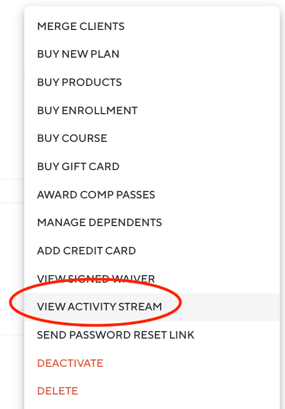
- Select the three dots next to the client’s name.
- Select View Activity Stream.
From the client profile:
- Open the client’s profile.
- Select Actions.
- Select View Activity Stream.
What You’ll See
The top of the Activity Stream shows the client’s name, status, visits, last activity date and home location. Activity is grouped by date, newest first, and each tab shows a count.
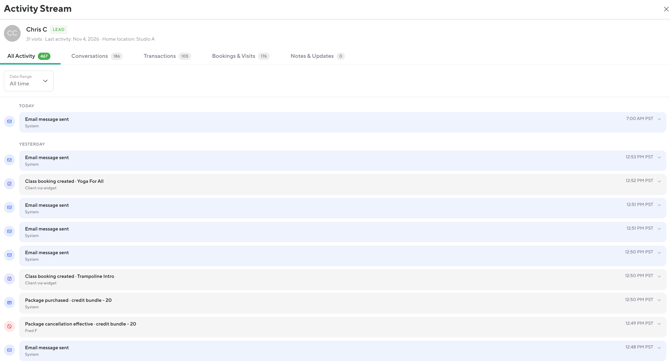
- All Activity: Everything on the client’s profile. This is the default view.
- Conversations: Texts sent and received, emails sent, and phone calls. Filter by SMS, Email or Calls.
- Transactions: Plan and pack purchases, recurring payments, refunds, late fees, late cancel fees and account balance changes.
- Bookings & Visits: Class bookings, check-ins, cancellations, enrollments and appointment settle-ups.
- Notes & Updates: Notes added or updated on the client, plus profile updates like lead stage changes.
☝️ Important: Incoming emails aren’t shown in the Activity Stream yet.
View Activity Details
Each item shows a short summary, who made the change (a staff member or System) and the time. Select an item to see more details. For a sent email, select View email to see the full message.
Filter by Date
Select Date Range to choose a preset or set a custom range. The default is All time. The Activity Stream shows 20 items at a time, and you can use the page controls at the bottom to see more.
⚡ Pro tip: When a client asks about a charge, go straight to the Transactions tab to find it fast.