
Appointment Notes
Appointment Notes allow staff members to create and view notes tied to specific appointments, making it easier to track client progress, record important session details, and ensure continuity of care across visits.
Why it Matters:
Previously, there was no structured way to record or review client progress across appointments. Staff couldn’t easily see what happened in a prior session, track client improvements, or document relevant context (like injuries or attendance updates). This created gaps in communication and inconsistency in client experience.
With Appointment Notes, teams can:
-
Keep a detailed record of client progress and relevant session info.
-
View historical notes for each client or appointment in one place.
-
Provide a smoother, more informed experience for clients from one appointment to the next.
Keep a detailed record of client progress and relevant session info.
View historical notes for each client or appointment in one place.
Provide a smoother, more informed experience for clients from one appointment to the next.
Functionality:
Create and manage notes:
-
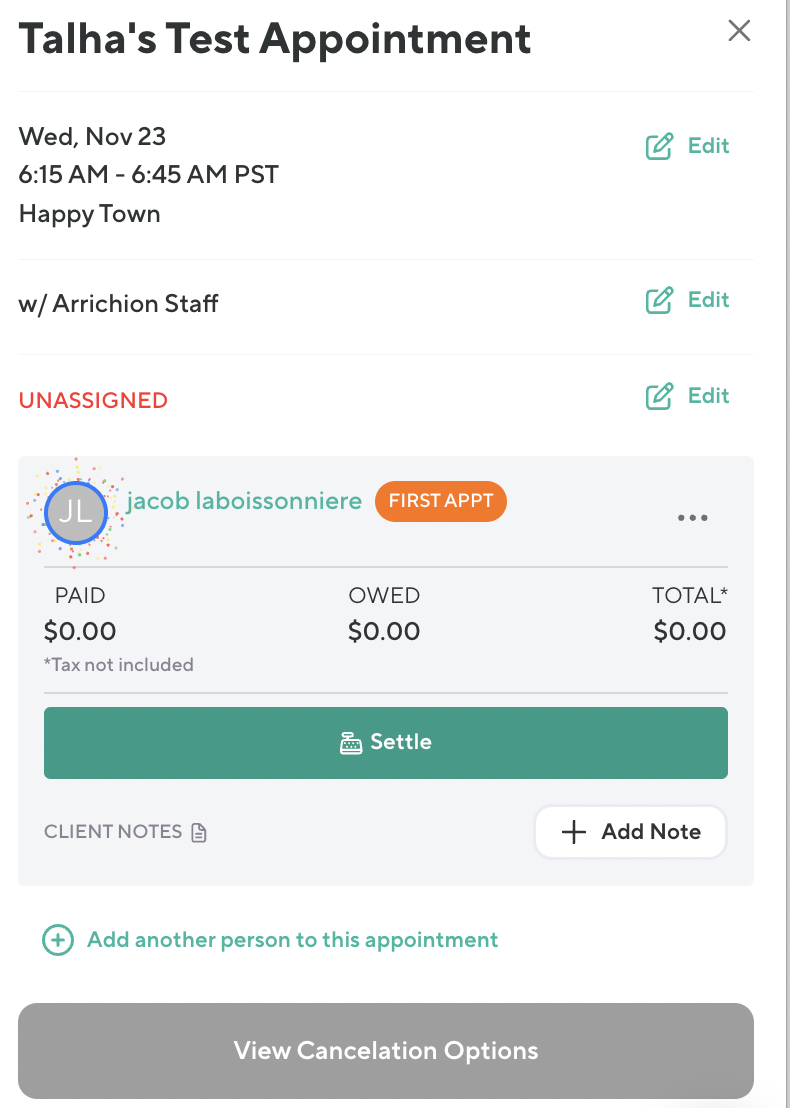
Add a note directly from an appointment booking on the schedule by client/staff view
-
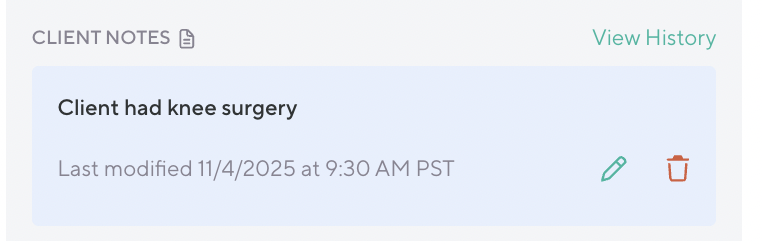
Notes can be edited directly from the appointment booking slide-in
-
It will automatically record the date, time, and staff member who created them.
-
Once a note is created, the staff can also select “view history” to view all notes for this client in the slide-in.
Add a note directly from an appointment booking on the schedule by client/staff view
Notes can be edited directly from the appointment booking slide-in
It will automatically record the date, time, and staff member who created them.
Once a note is created, the staff can also select “view history” to view all notes for this client in the slide-in.
View notes:
-
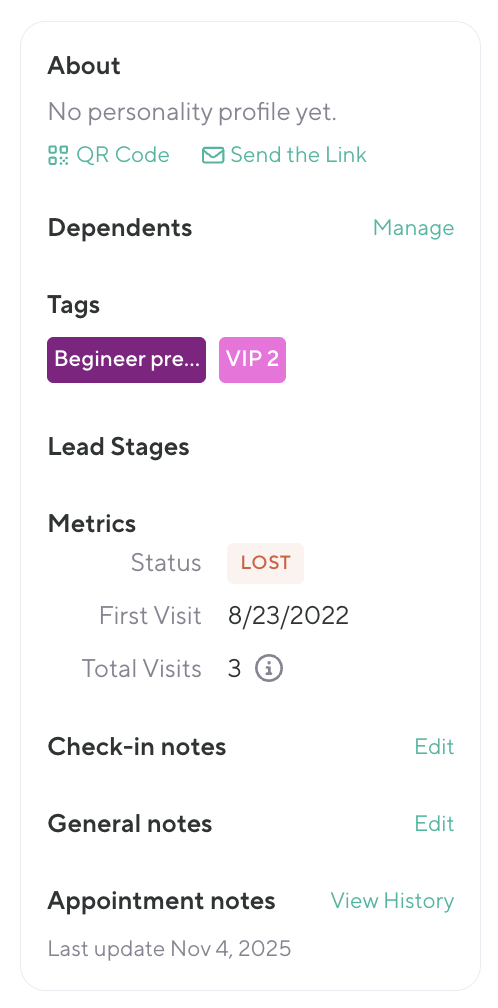
Appointment notes are accessible from both the client profile and the appointment booking
-
Notes can only be edited from the appointment booking and are viewable from the client profile
-
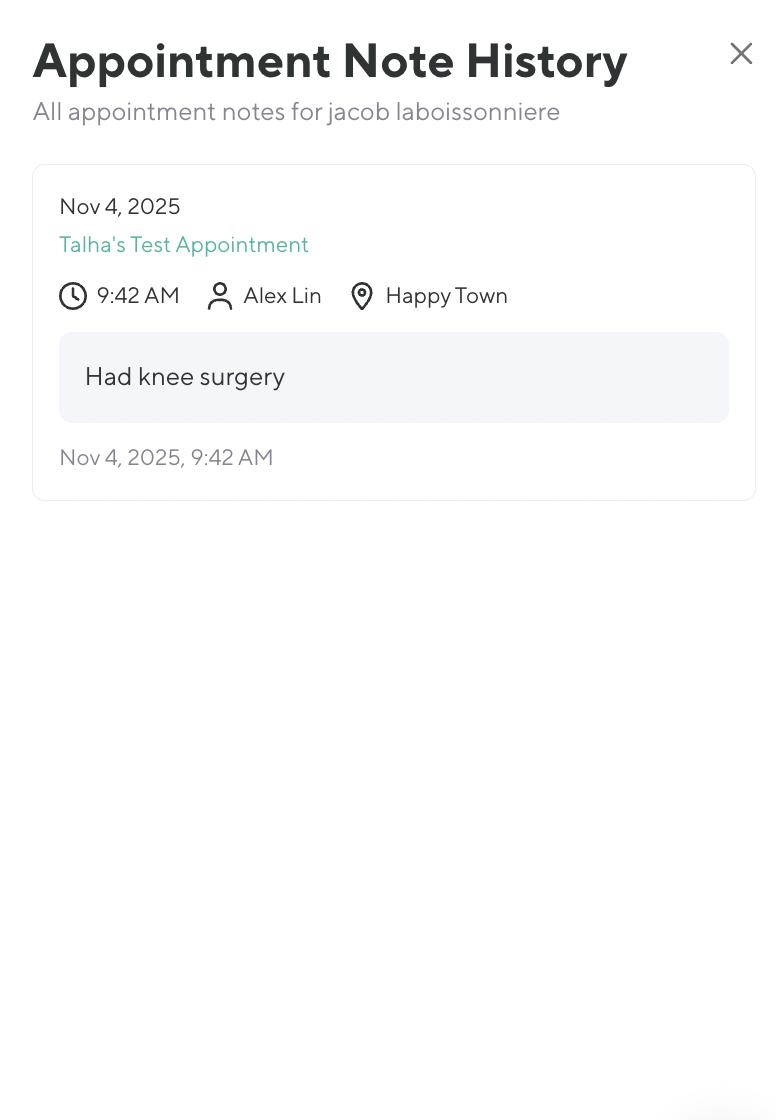
Default view shows the most recent note at the top
-
Notes display chronologically, including:
-
Date/time created
-
Staff member name
-
Linked appointment details
-
-
Client profile:
Appointment notes are accessible from both the client profile and the appointment booking
Notes can only be edited from the appointment booking and are viewable from the client profile
Default view shows the most recent note at the top
Notes display chronologically, including:
Date/time created
Date/time created
Staff member name
Staff member name
Linked appointment details
Linked appointment details
Client profile:
Indicators & visibility:
-
An appointment booking with a note will show a visual indicator on the schedule view (by client or staff)
An appointment booking with a note will show a visual indicator on the schedule view (by client or staff)

Permissions:
-
Appointment Notes follow Client Profile permission settings.
Appointment Notes follow Client Profile permission settings.