
What Is the Concierge Agent?
The Concierge Agent is an always-on AI chat assistant that turns your studio's website into a 24/7 front desk. It answers visitor questions, guides prospective members to the right class or membership, and routes anyone who needs a real person directly to your team — no staff involvement required.
The agent learns about your studio from two sources: Walla automatically supplies your class schedule, services, appointments, and plan data, and your website URL fills in the rest — policies, team bios, FAQs, and anything else on your site. You can also customize its name, greeting, and behavior with additional instructions.
📢 Coming Soon: Concierge Agent chatbot preview on the website
How the agent answers questions
- The agent uses your website content as its primary knowledge base, scanning all pages automatically.
- For classes, services, and plans, Walla already provides this data — you don't need to re-enter it.
- When a visitor asks about a class or membership, the agent shares information and links them directly to the right page on your site to book or purchase.
- If the agent can't find the answer, it provides your studio's contact information so the visitor can reach someone directly.
- Visitors can rate responses with a thumbs up or thumbs down to help the AI improve over time.
What it does
- Answers questions about your classes, services, and policies
- Guides visitors to the right class or membership page
- Provides direct links to booking and purchase pages
- Directs visitors to your studio's contact info when it can't help
- Appears on every page of your website automatically
What it doesn't do
- Book classes or make purchases on behalf of visitors
- Take payment or credit card information
- Complete transactions within the chat
- Support more than one website URL at a time (coming in a future release)
How to Activate the Concierge Agent
Activating the Concierge Agent is a three-step process on your end: Enable the agent, configure your agent, and embed the code snippet on your website.
🎬 Want a visual walkthrough? Follow along with our Storylane step-by-step guide at your own pace.
Step 1: Enable your agent under business settings
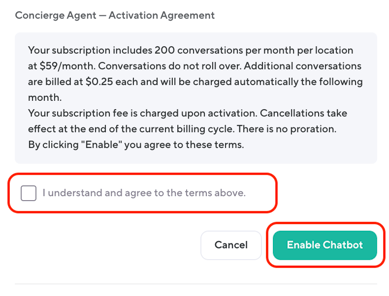
Navigate to Business Settings → Concierge Agent and select "Manage". On the next screen navigate to the right side panel, scroll down to review the terms, "Enable Chatbot"
Step 2: Configure your agent
Once the feature is enabled, complete your configuration. The Website URL and Agent Name are required; everything else is optional but recommended.
| Field | Required? | What to Enter |
|---|---|---|
| Website URL | Required | Your studio's website URL. The agent scrapes every page of this site to build its knowledge base. Pre-filled by our Support team during setup, but you can update it any time. Only one URL is supported at this time. |
| Agent Name | Required | A name for your agent — e.g., "Aria" or "Studio Guide." This appears in the chat widget and helps personalize the visitor experience. |
| Greeting | Optional | The opening message visitors see when they open the chat. For example: "Welcome to [Studio Name]! Ask me anything about our classes, memberships, or schedule." |
| Additional Information | Optional | Extra guidance for the agent — FAQs, behavioral instructions, or nuances the website doesn't cover. For example: "If someone asks about parking, tell them we have free parking behind the building," or "Always recommend the intro offer to new visitors." |
📢 Coming Soon: Concierge Agent configuration page contents
✅ These settings can be updated at any time. Return to the Concierge Agent section of Business Settings whenever you want to update the agent name, greeting, or additional information. Changes take effect immediately — no need to update the embed code on your website.
Step 3: Embed the code snippet on your website
- In Walla, navigate to: Business Settings → Widget and App Settings
- Open the Widget Codes tab
- In the upper-left Widgets dropdown, select: Chatbot
📢 Coming Soon: Widget Codes tab demonstrating the Chatbot embed snippet ready to copy
⚠️ Your agent won't appear until configuration and embedding are complete. Backend enablement isn't enough on its own. Both Step 2 (configuration) and Step 3 (embed code) must be done before visitors will see the widget.
Disabling the Concierge Agent
You cannot disable the Concierge Agent directly from the platform. To turn it off, contact Walla Customer Support.
To disable your Concierge Agent:
- Contact Walla at support@hellowalla.com or via Live Chat.
- Billing will be removed from your account upon confirmation.
- Remove the embed code from your website to prevent the widget from appearing.
Frequently Asked Questions
What information does the agent already know about my studio? Walla automatically provides the agent with your class schedule, services, appointments, and plans. Your website URL fills in everything else — policies, team bios, events, FAQs, and any other content on your site. Use the Additional Information field for anything not captured by either source.
What counts as a conversation? A conversation is one continuous exchange between the agent and a single visitor. No matter how many back-and-forth messages happen in a single session, it counts as one conversation.
Can the agent book classes or process payments? No. The Concierge Agent is an information and guidance tool, not a sales transaction tool. It can answer questions about classes and memberships and provide direct links to the booking or purchase page, but the visitor completes the transaction themselves on your website or in the Walla widget. The agent cannot take credit card information or complete purchases on behalf of a visitor.
What happens when the agent doesn't know the answer? When the agent can't find a relevant answer based on your website or Walla data, it tells the visitor it doesn't have that information and provides your studio's contact details so they can reach a real person directly. No visitor leaves without a next step.
Does the agent work after business hours? Yes — 24 hours a day, 7 days a week, including holidays. Visitors browsing your site at any hour can get answers and guidance without waiting for staff to respond.
My studio has two websites. Can I use both? Not at this time. The Concierge Agent currently supports one website URL per configuration. If you run two separate websites, you'll need to choose the primary one for now. Support for multiple URLs is being evaluated for a future release.
Can I change the agent's name or greeting after it's live? Yes. Return to the Concierge Agent section in Business Settings at any time to update any of the optional fields. Changes go live immediately and do not require updating the embed code.
How do I know how many conversations I've used this month? Coming soon!
Questions? Contact support at support@hellowalla.com.