Family Accounts | Walla Support Center
Family Accounts
Family Accounts introduce a way for studios to manage clients with dependents under a single primary account. This update streamlines how families book, communicate, and complete waivers while maintaining accurate data ownership and legal compliance.
(Not yet available in the Walla App, including Branded Apps)
Why it Matters:
Studios often serve families where children attend classes but parents handle scheduling and payments. Family Accounts make it easier to manage those relationships without requiring separate logins for each dependent.
MVP Scope:
In this first version, only studios can create dependents on behalf of clients. Clients cannot yet create accounts for their dependents directly. Once added, dependents will appear on the parent’s client account in the widget.
Note:
Family Accounts are designed for dependents (ie: children) who do not manage their own accounts. For shared adult access (like partners sharing a plan), see Shared Plans, where both individuals maintain separate logins but share billing and plan access.
Functionality:
Dependent Creation Flow (Parent-Initiated from Front-Desk)
-
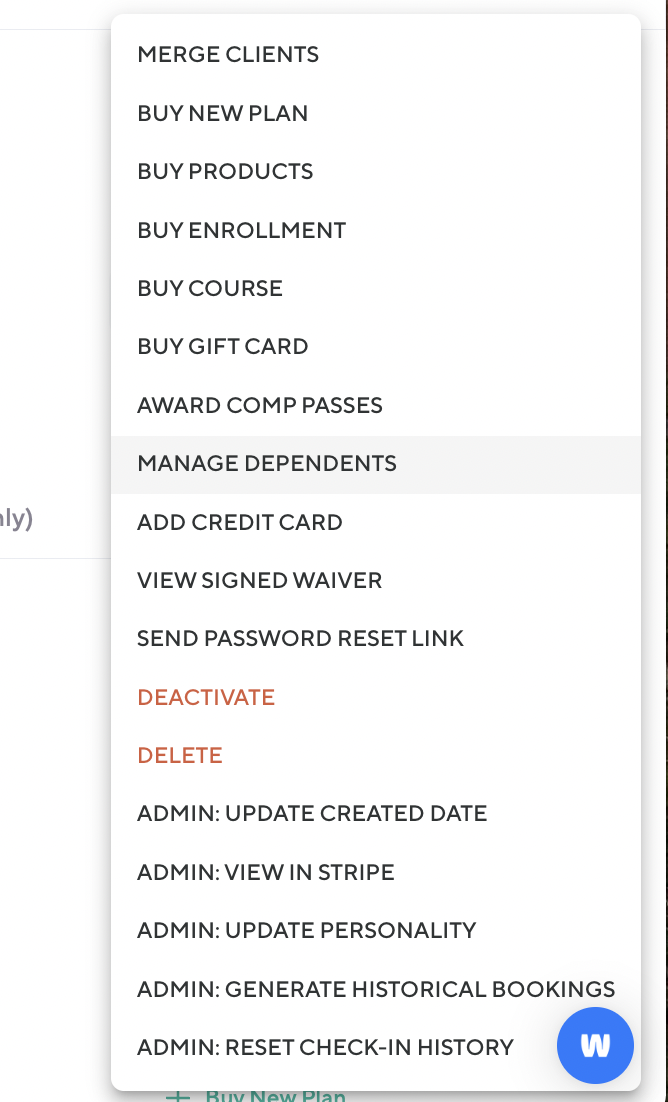
To add a dependent to an account, the studio should go to the client’s profile and select "Manage Dependents"
-
They can access this from the “Actions” button on the top right corner of their profile.
-
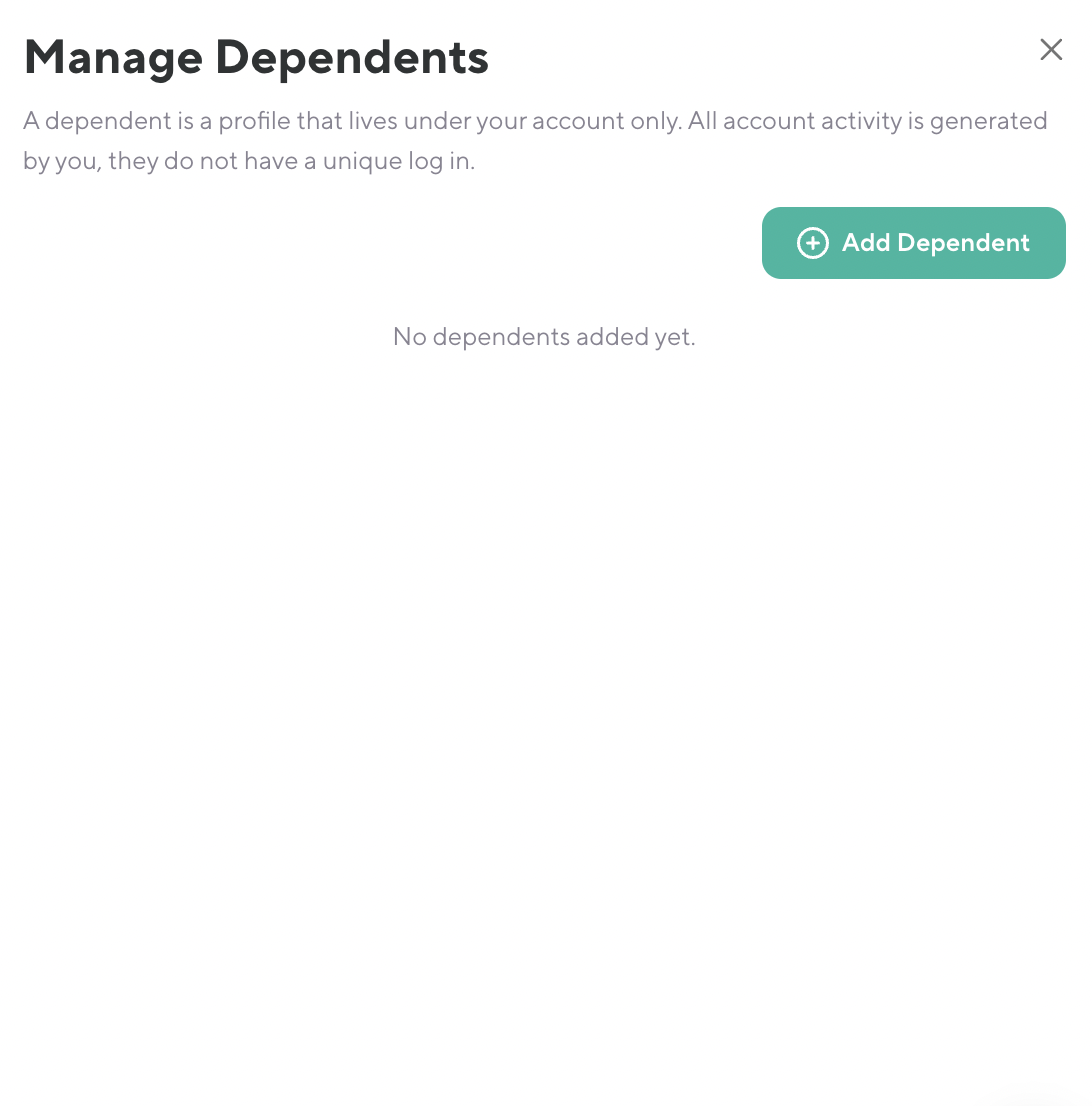
Once that is selected, it will open a slide-in panel.
-
If there are already dependents on the account they will appear
-
If there are none, they can select “Add dependent” and enter all of the details on behalf of the client requesting a family account
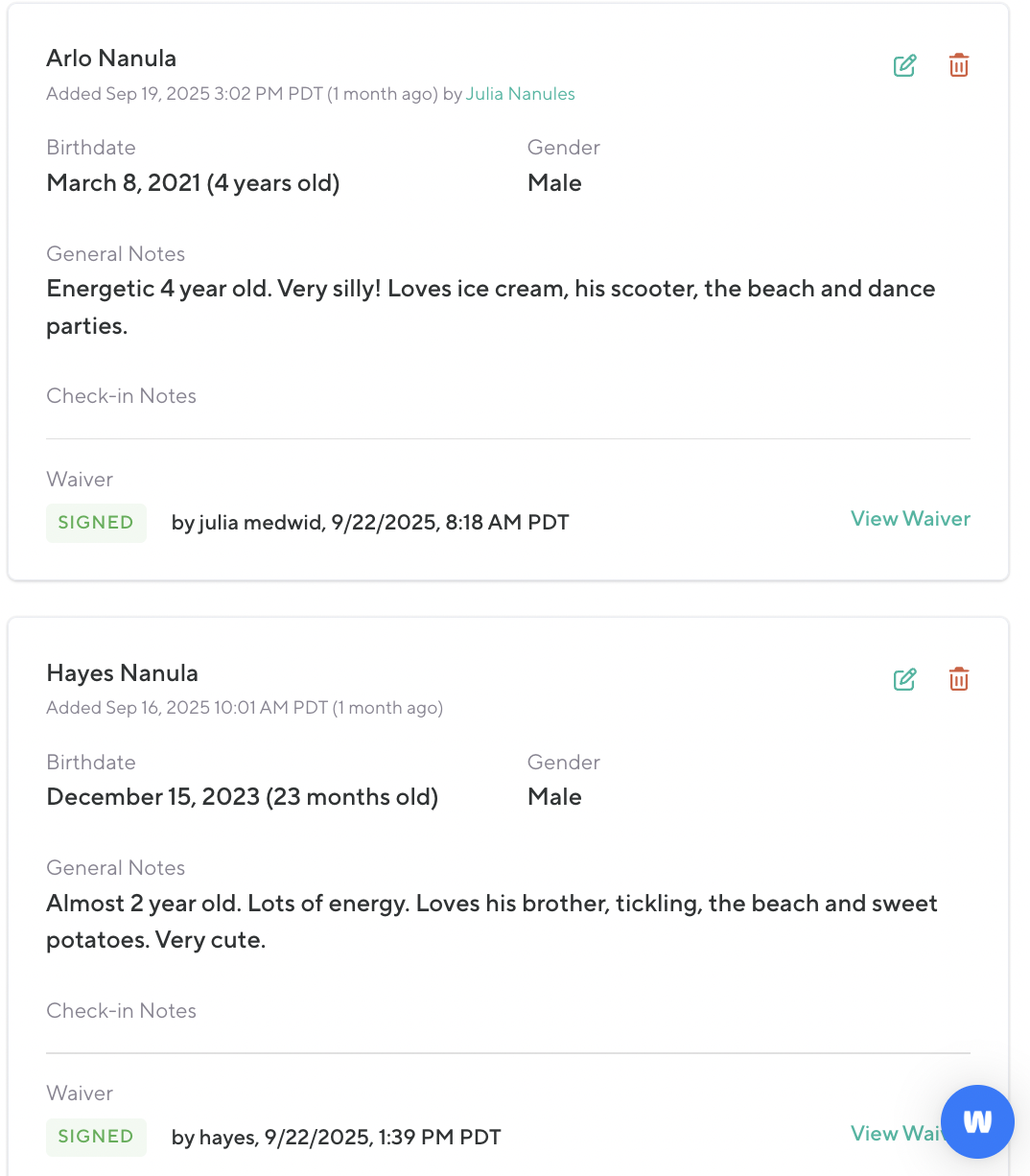
Once that is selected, it will open a slide-in panel.
If there are already dependents on the account they will appear
If there are none, they can select “Add dependent” and enter all of the details on behalf of the client requesting a family account
Client Profile Management
-
A parent can request a studio to add, edit, or remove dependent profiles under their account.
-
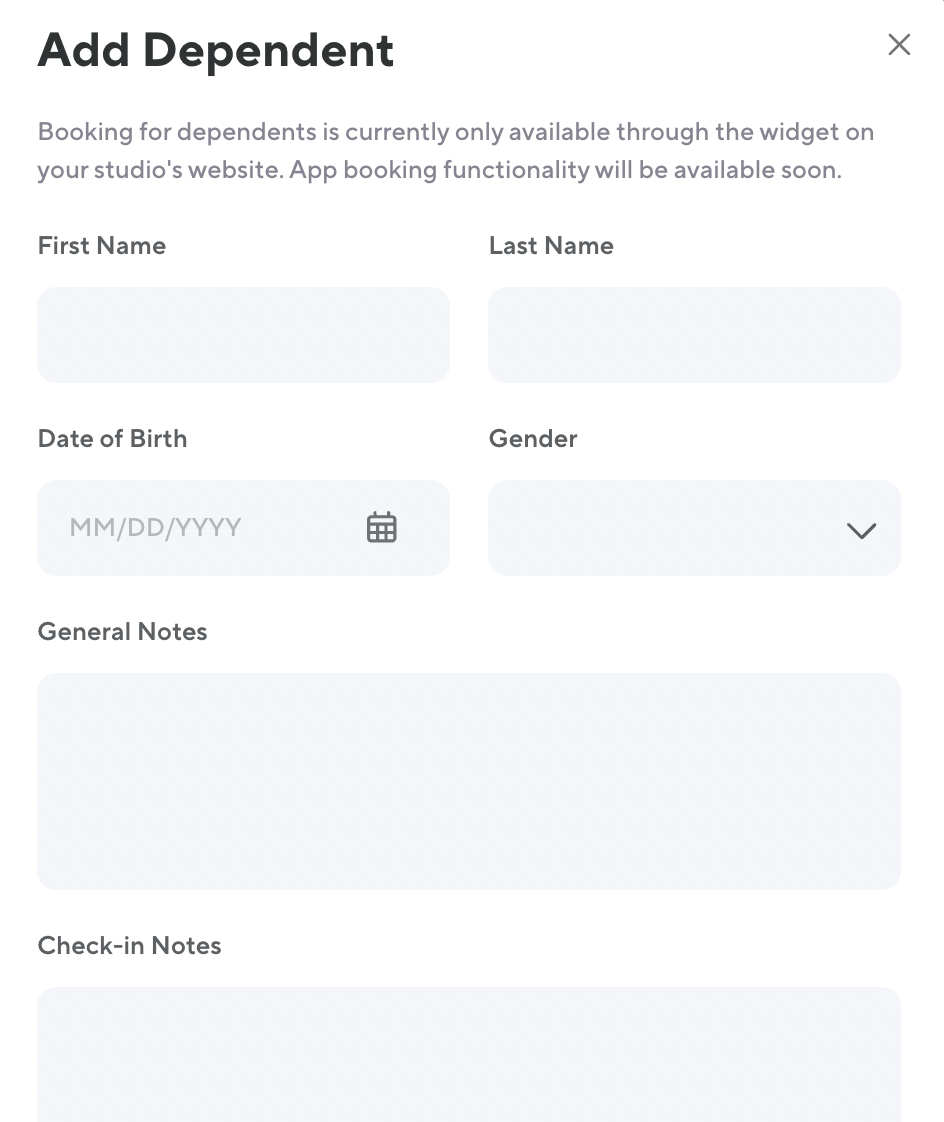
Each dependent includes:
-
First/Last Name
-
Date of Birth
-
Gender
-
General Notes
-
Checkin Notes
-
Each dependent includes:
First/Last Name
First/Last Name
Date of Birth
Date of Birth
Gender
Gender
General Notes
General Notes
Checkin Notes
Checkin Notes
-
Dependents cannot log in or access the platform themselves.
-
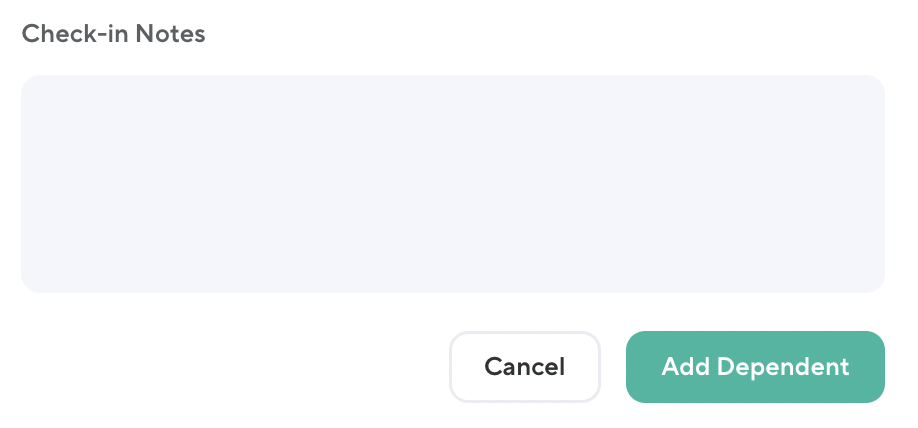
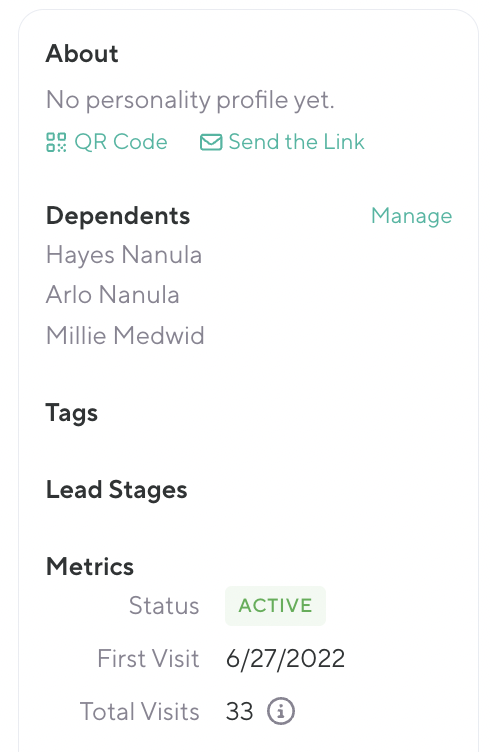
Once a studio adds a dependent account to a client’s profile those details will now appear on the widget (and eventually app).
-
The dependent will appear in all the booking flows as an option for that client to book into a class.
-
Ie: front desk class roster, widget booking flow
-
Dependents cannot log in or access the platform themselves.
Once a studio adds a dependent account to a client’s profile those details will now appear on the widget (and eventually app).
The dependent will appear in all the booking flows as an option for that client to book into a class.
Ie: front desk class roster, widget booking flow
-
Dependents also appear in the “About” section
Booking via widget, app, or front desk:
-
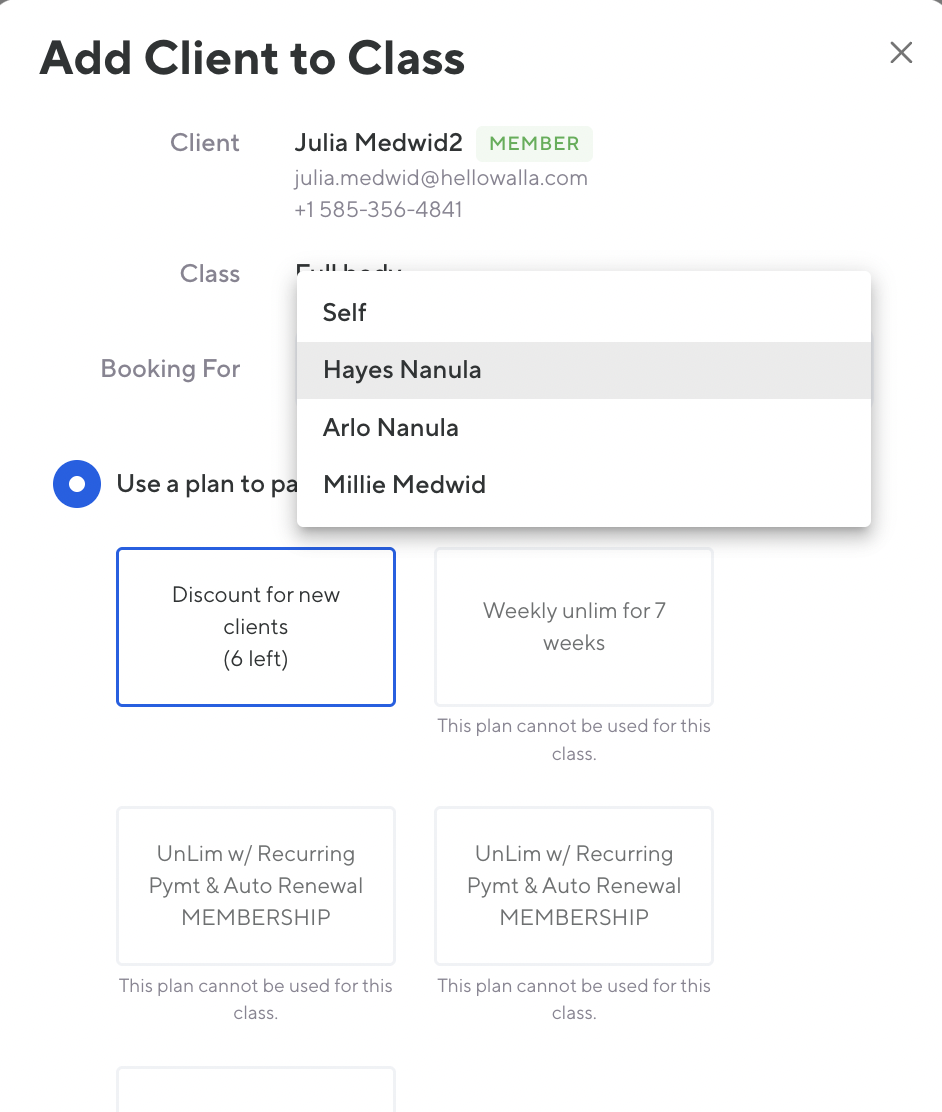
A client can book for themselves or for their dependent
-
Front desk booking flow:
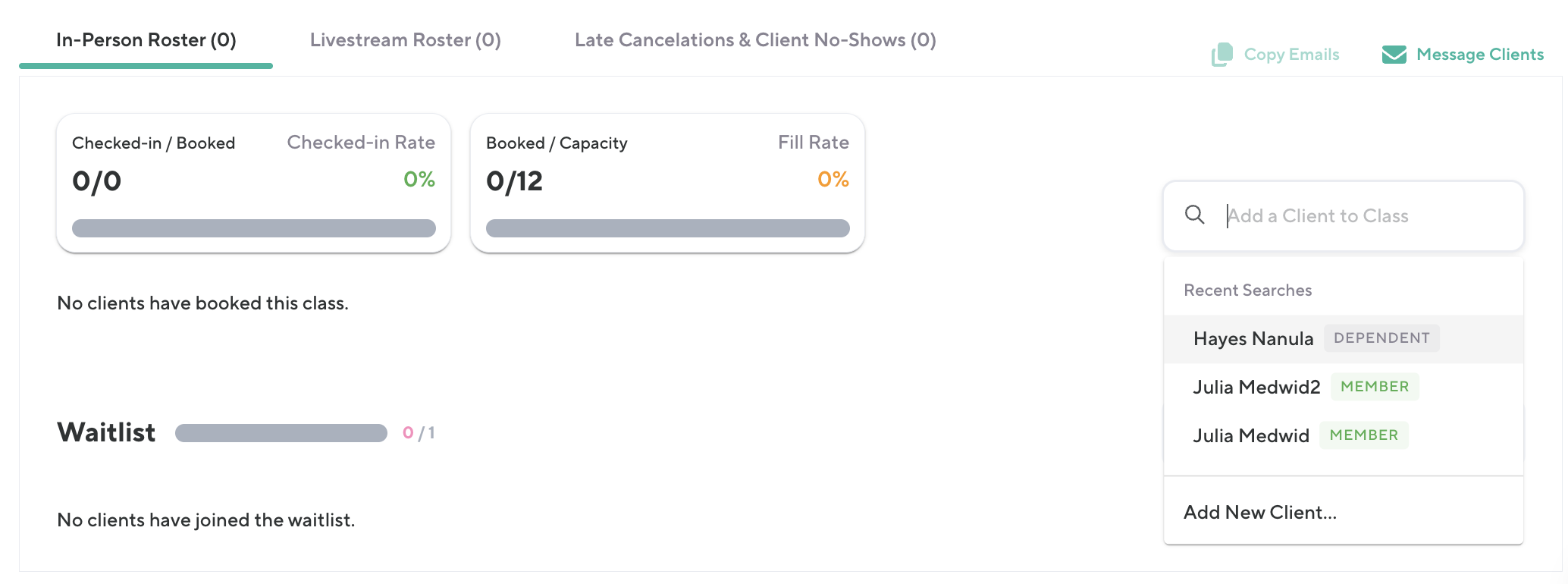
A client can book for themselves or for their dependent
Front desk booking flow:
-
Roster and attendance reflect the selected dependent
-
A parent can book a class for any dependent they manage
-
The dependent’s name appears on the class roster and attendance reports
-
The parent is responsible for payment, cancellation, and communication
Roster and attendance reflect the selected dependent
A parent can book a class for any dependent they manage
The dependent’s name appears on the class roster and attendance reports
The parent is responsible for payment, cancellation, and communication
Widget booking flow:
Marketing Automations:
-
All emails that a dependent qualifies for are directed to the guardian
Membership perks
-
The dependent gets the same membership benefits as the guardian
-
A dependent will qualify for enrollment member pricing if the guardian client is a member
-
For classes, if the guardian client is a member, the dependent qualifies for the earlier booking window
-
-
The dependent gets the same membership benefits as the guardian
A dependent will qualify for enrollment member pricing if the guardian client is a member
-
For classes, if the guardian client is a member, the dependent qualifies for the earlier booking window
A dependent will qualify for enrollment member pricing if the guardian client is a member
For classes, if the guardian client is a member, the dependent qualifies for the earlier booking window
Plan Purchasing & Usage
-
The management of guardian/dependent plans is automatic.
-
If a dependent is added, they will be automatically added all the guardian’s shared plans
-
If a dependent is removed, they will be removed from all the guardian’s shared plans
-
If a guardian purchases a new plan, they will be automatically added for all their dependents
-
No matter what plan type (including appointments, credit bundles, vod) is shared, the dependent should have same access as guardian
-
-
All purchases are made by the parent
-
Payment methods are stored in the parent’s wallet only
-
All late cancel and no show fees for the dependent go on the parent’s card on file
-
The management of guardian/dependent plans is automatic.
If a dependent is added, they will be automatically added all the guardian’s shared plans
If a dependent is removed, they will be removed from all the guardian’s shared plans
If a guardian purchases a new plan, they will be automatically added for all their dependents
No matter what plan type (including appointments, credit bundles, vod) is shared, the dependent should have same access as guardian
All purchases are made by the parent
Payment methods are stored in the parent’s wallet only
All late cancel and no show fees for the dependent go on the parent’s card on file
Dependent Discoverability in Search
-
Dependents appear in staff/admin search with parent context:
-
Format: "Ava Smith (Dependent)"
-
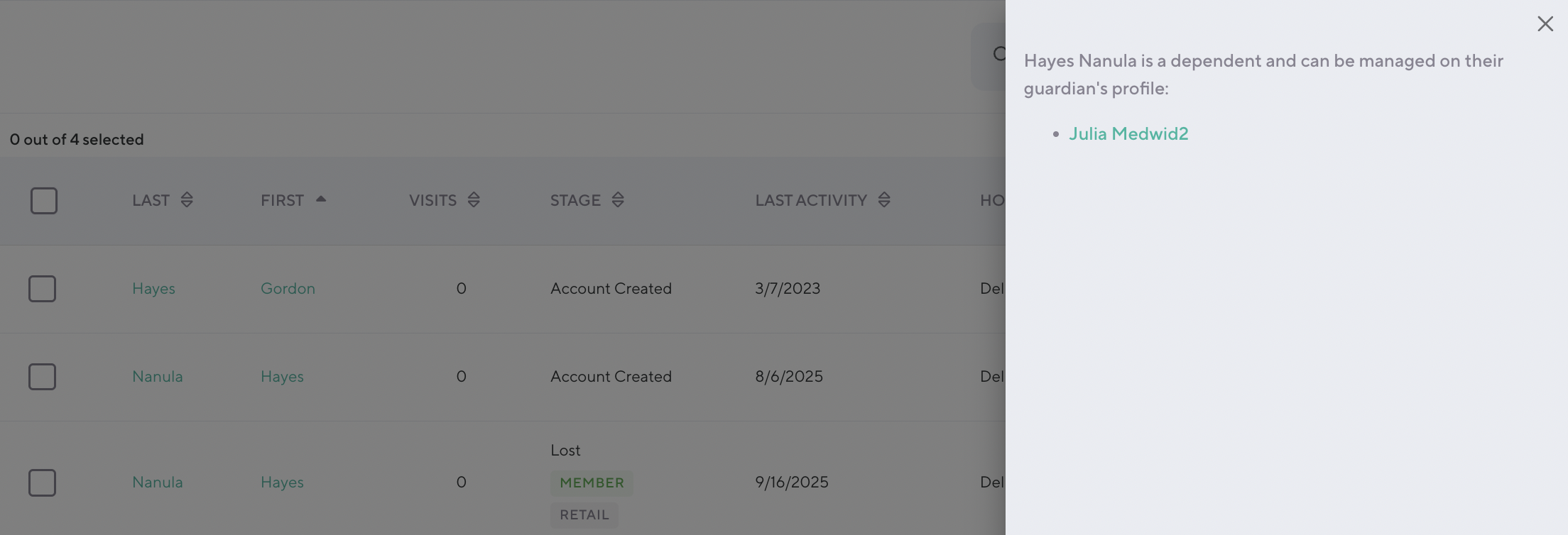
Clicking opens a mini-profile with link to parent profile.
-
Searchable by dependent or parent name.
-
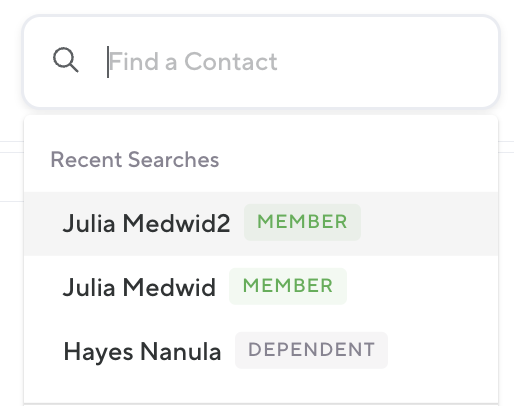
Dependents appear in staff/admin search with parent context:
Format: "Ava Smith (Dependent)"
Clicking opens a mini-profile with link to parent profile.
Searchable by dependent or parent name.
Communication:
-
All dependent-related communication is sent to the parent’s contact details.
-
Class reminders, confirmations, cancellations
-
Marketing and milestone automations
-
Review requests after class
-
-
Messages include the dependent’s name but are addressed to the parent.
-
Parent communication preferences apply globally (parent + dependents).
-
Required transactional notifications:
All dependent-related communication is sent to the parent’s contact details.
Class reminders, confirmations, cancellations
Marketing and milestone automations
Review requests after class
Messages include the dependent’s name but are addressed to the parent.
Parent communication preferences apply globally (parent + dependents).
Required transactional notifications:
Plans:
-
Sent when a plan is set to be canceled
-
Sent when a plan is canceled
-
Sent when a plan is set to be paused
-
Sent when a plan is paused
Sent when a plan is set to be canceled
Sent when a plan is canceled
Sent when a plan is set to be paused
Sent when a plan is paused
Bookings:
-
Sent when a client books a class
Cancellations:
-
Sent when a client cancels a class
-
Sent when the business cancels a class with existing bookings
Waitlists:
-
Sent when a client on the waitlist gets into a class
-
Sent when a client gets added to a waitlist
-
Sent when a client gets removed from a waitlist
Sent when a client on the waitlist gets into a class
Sent when a client gets added to a waitlist
Sent when a client gets removed from a waitlist