
When a customer misses their appointment, staff can mark the booking as a no-show from the Appointment Schedule. Marking a no-show applies your Appointment No-Show policy: it charges the no-show fee and, if you choose, deducts the session from the customer's plan. Any staff member with access to the Appointment Schedule can adjust the fee and session deduction. These options can not be restricted by staff role.
🚩 A no-show must be marked manually. Unlike classes, appointments are never flagged as no-shows automatically. If a missed appointment is not marked, no fee is charged and no session is deducted.
🚩 Settled appointments can not be marked as a no-show. Do not settle a missed appointment. Mark it as a no-show instead.
To Mark an Appointment as a No-Show
- From the main navigation menu, select Appointment Schedule.
- Select the appointment booking, the panel opens on the right side of the page.
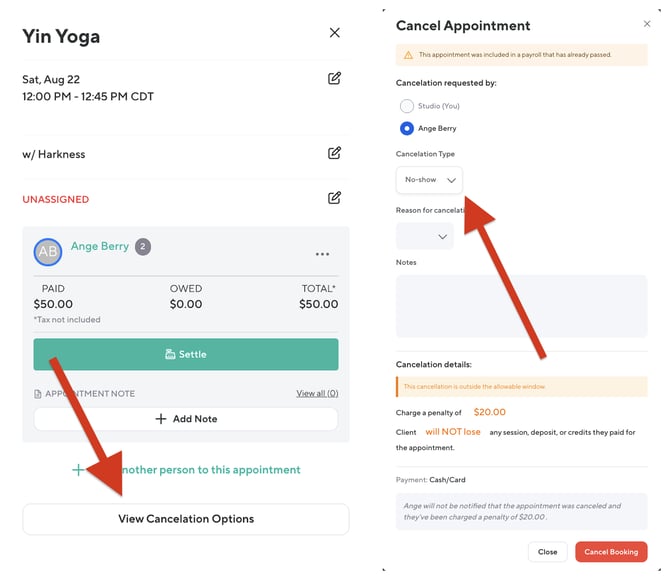
- Click View Cancellation Options. The Cancel Appointment window opens.
- Under Cancellation Requested By, select the customer's name. Do not select Studio (You). The no-show option only appears when the customer's name is selected.
- Under Cancellation Type, change the selection from Late Cancel to No-Show.
- Choose a Reason for Cancellation from the drop-down. This field is required.
- Add any Notes for your team (optional).
- Review the Cancellation Details:
- Penalty fee: Pre-filled from your no-show policy. Keep it, change the amount, or choose not to charge it.
- Session, deposit, or credits: Choose whether the customer will lose or keep the session they used to book.
- Select Cancel Booking.
A confirmation message appears and the appointment is removed from the Appointment Schedule.
What Happens After a No-Show
- No-show fee: Charged 24 hours after the no-show is marked. Until then, the fee shows as Pending and can still be waived.
- If the customer does not have a valid credit card on file, the fee is charged to their account balance.
- Session, deposit, or credit deduction: Applied immediately after the no-show is marked.
- Customer notification: The Appointment No-Show transactional notification is sent to the customer when the no-show is marked.
- Policy used: If the location has its own no-show policy, that policy applies. If not, the Business Settings policy applies.
Confirm the No-Show
- Go to the Report Center.
- Open the Appointment No-Show / Late Cancel report.
- Find the booking by its appointment date. The fee shows as Pending until it is charged 24 hours after the no-show is marked.
- To waive a Pending fee, select the edit option on the booking's row.