
Want a guided walkthrough? Check out our interactive step-by-step tutorial:
OverviewWe've released a new and improved plan purchasing experience for the Walla app, making it easier for clients to browse and purchase plans. The updated experience features a vertical scrolling layout that groups plans into clear, organized sections — giving clients a cleaner and more intuitive way to find and buy the right plan.
Powered by Plan Sorting: This new purchase experience is powered by your Plan Sorting configuration. If you've already set up Plan Sorting, no action is required — your plans will automatically appear in the new vertical layout. If you haven't configured it yet, follow the steps below to enable it for your clients.
What's New
Instead of a flat list of plans, clients now see their available plans grouped into sections (for example, "VIP Plans" and "More Class Plans") with a clean, scrollable card-based layout. Each plan card displays the plan name, visit count or unlimited icon, price, and a Buy button — making it easy for clients to compare and purchase directly.
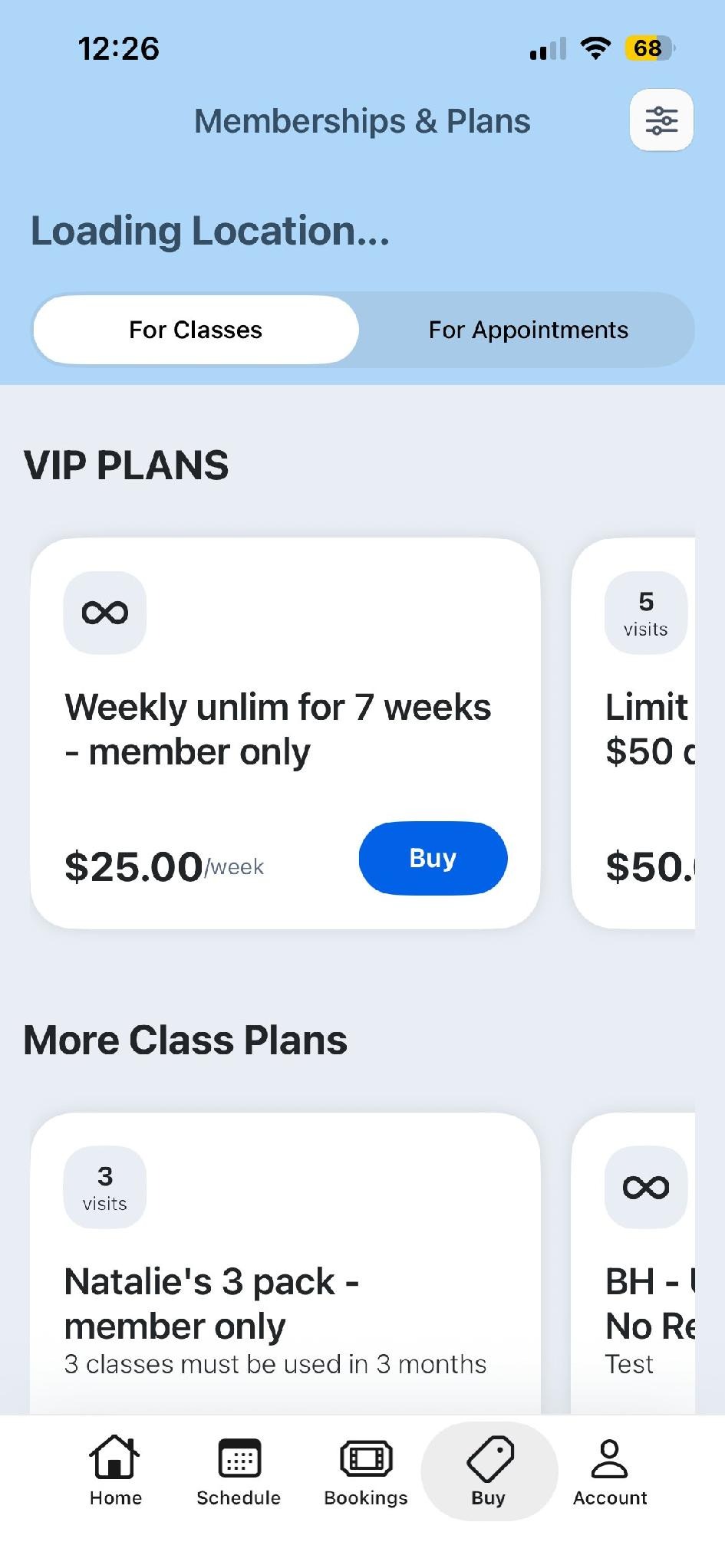
New vertical scrolling plan purchase experience in the Walla app — plans are grouped into sections based on your Plan Sorting configuration
What Happens If You Haven't Set Up Plan Sorting
Important: If your studio has not configured Plan Sorting, clients will continue to see the previous list-style layout instead of the new vertical scrolling experience. To take advantage of the improved purchase flow, you'll need to enable Plan Sorting.
How to Enable Plan Sorting
To get started, navigate to:
Business Settings → Widget & App Settings → Plan Sorting
From there, you can organize your plans into sections and set the order in which they appear to clients in both the widget and the Walla app.
Tip: Group similar plans together (e.g. all VIP or membership plans in one section, drop-in or class packs in another) to make it as easy as possible for clients to find what they're looking for.
Frequently Asked Questions
Do I need to do anything if I've already set up Plan Sorting?
No — if Plan Sorting is already configured for your studio, your clients will automatically see the new vertical scrolling purchase experience. No additional action is needed.
What happens if I don't set up Plan Sorting?
Clients will continue to see the previous list-style layout instead of the new experience. We recommend enabling Plan Sorting to take full advantage of the improved purchase flow.
Will this affect the widget on my website too?
Plan Sorting settings apply across your Widget & App Settings, so your sorting configuration will be reflected wherever it's supported.
When will this be available on Android?
Android support is expected this week. Until then, Android users will see the existing experience.
Can I change my Plan Sorting groupings after I've set them up?
Yes — you can return to Business Settings → Widget & App Settings → Plan Sorting at any time to reorganize your sections and plan order.
Quick Reference
|
Setting |
Details |
|
Where to enable |
Business Settings → Widget & App Settings → Plan Sorting |
|
Action needed if already configured |
None — new layout applies automatically |
|
Action needed if not configured |
Set up Plan Sorting to enable the new layout |
|
iOS availability |
Live now |
|
Android availability |
Coming this week |
|
Fallback for studios without Plan Sorting |
Clients see the previous list-style UI |