
Referral Campaigns enable studios to turn word-of-mouth into a structured, trackable acquisition channel. You can incentivize existing clients to refer friends, define exactly what qualifies a referral, automate rewards, and see the real revenue impact — all from one place. The system tracks the full referral lifecycle from account creation through to reward issuance, giving you clear visibility into performance, ROI, and which clients are actually driving your growth.
Everything related to Referral Campaigns lives under Marketing → Referrals & Rewards in your navigation. This is a new section with five tabs: Overview, Campaigns, Worklist, Referral Heroes, and Settings. Note that the legacy Referral Analytics Report is no longer accessible from the Report Center — it has moved into the Referral Heroes tab within this section.
Overview Tab
When you land on Referrals & Rewards, the Overview tab is your first stop. It gives you a high-level snapshot of how your campaigns are performing over the last four weeks across all locations.
Campaign Referrals shows the total number of referrals generated across all active campaigns. A referral is counted the moment a friend creates an account using a referral link, regardless of whether they go on to qualify.
Campaign Qualified shows how many of those referrals successfully completed the required qualifying action — such as a plan purchase or class check-in — within their qualification window.
Campaign Expired reflects referrals whose qualification window closed before the referred client completed the required action.
Avg. ROI is the return on investment from campaign-attributed referrals only, calculated as revenue divided by cost. Organic referrals and any manually fulfilled referrals that were fulfilled differently than defined are excluded from this calculation.
Organic Referrals captures referrals that came in during the last four weeks but were not attributed to any active campaign.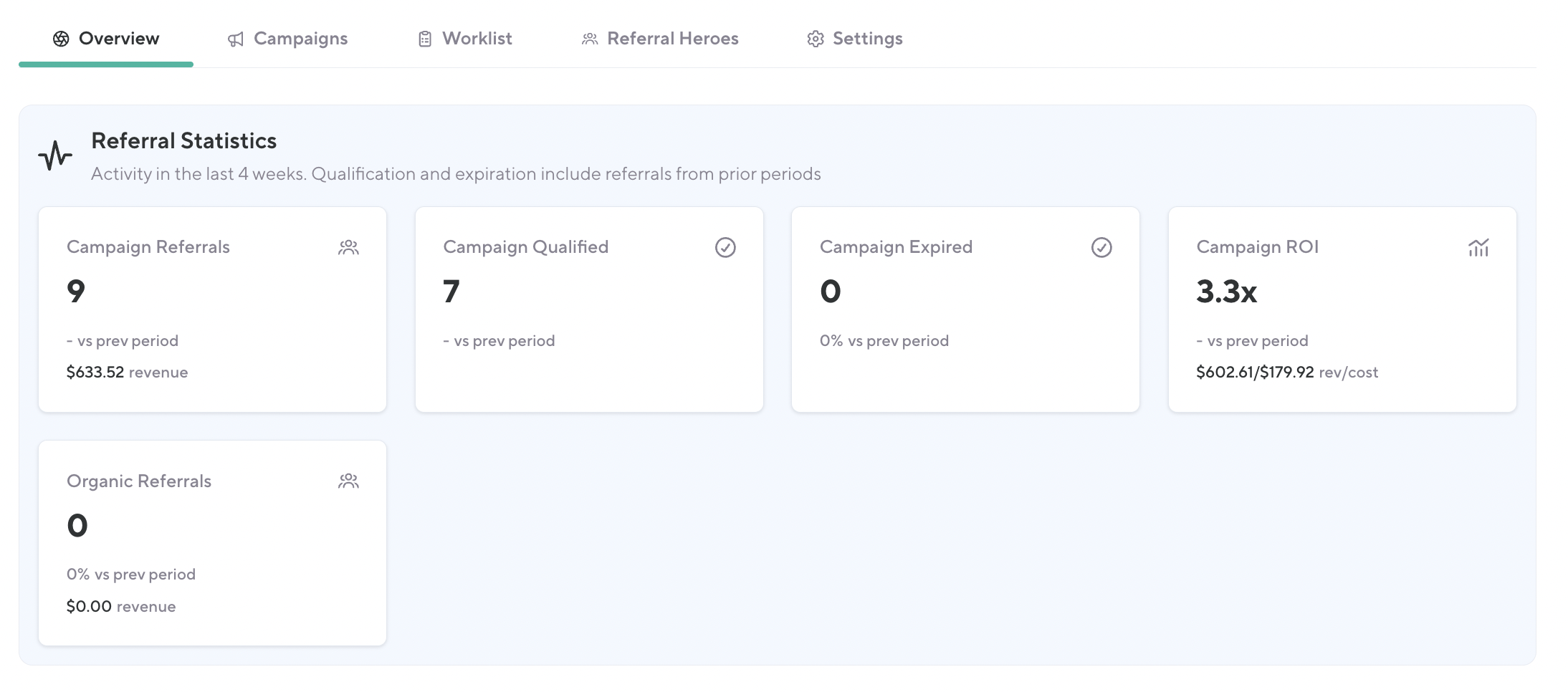
Campaigns Tab
The Campaigns tab is where you create and manage your referral campaigns. During this beta, only one campaign can be active at a time, though you can schedule future campaigns to start automatically when your current one ends.
To create a campaign, click Create Campaign and work through the configuration options. You'll choose a qualifying action — the specific action a referred client must complete to earn a reward. The options are class check-in, intro offer purchase, or plan purchase. You'll also set a start and end date for the campaign and a qualification window between 7 and 90 days. This window begins the moment the referred client creates their account, not when they click the link. Once they've created an account, they are no longer considered a new client, so this is their one opportunity to complete the qualifying action before the offer expires.
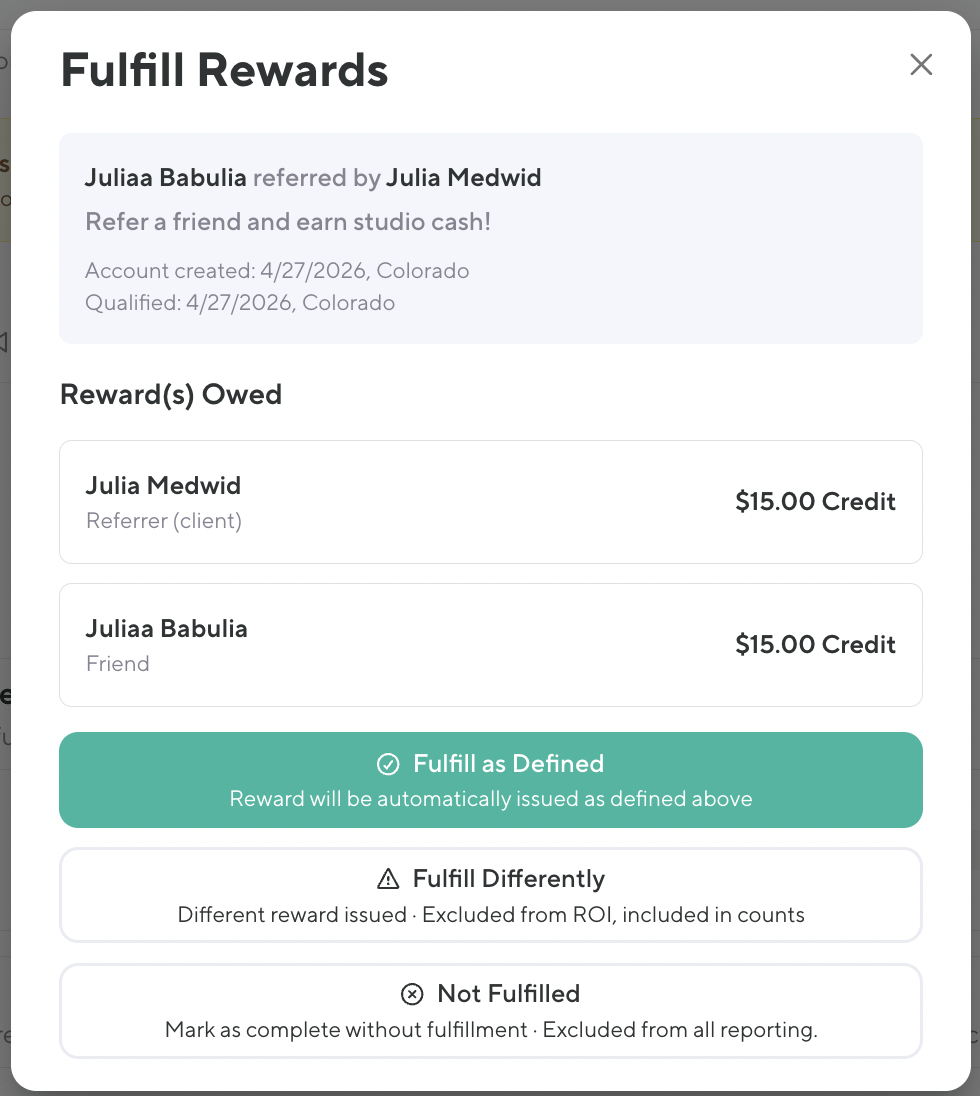
You can configure rewards for the referring client, the referred client, or both. Reward options include no reward, a comp pass, account credit, or other. You'll also choose whether rewards are issued automatically — triggered immediately when a referral qualifies — or manually, which queues them in the Worklist for your staff to fulfill.
Finally, you'll select which locations participate in the campaign. If you select all locations, every client will see the referral link in the mobile app. If you select only specific locations, only clients at those locations will have access to the link. It's important to know that the referred client must complete their qualifying action at a participating location for the referral to count. If they complete the action at a location that isn't part of the campaign, the referral will not qualify and no reward will be issued to either party. When a qualifying action is completed at a participating location, that location is responsible for paying out rewards to both clients.
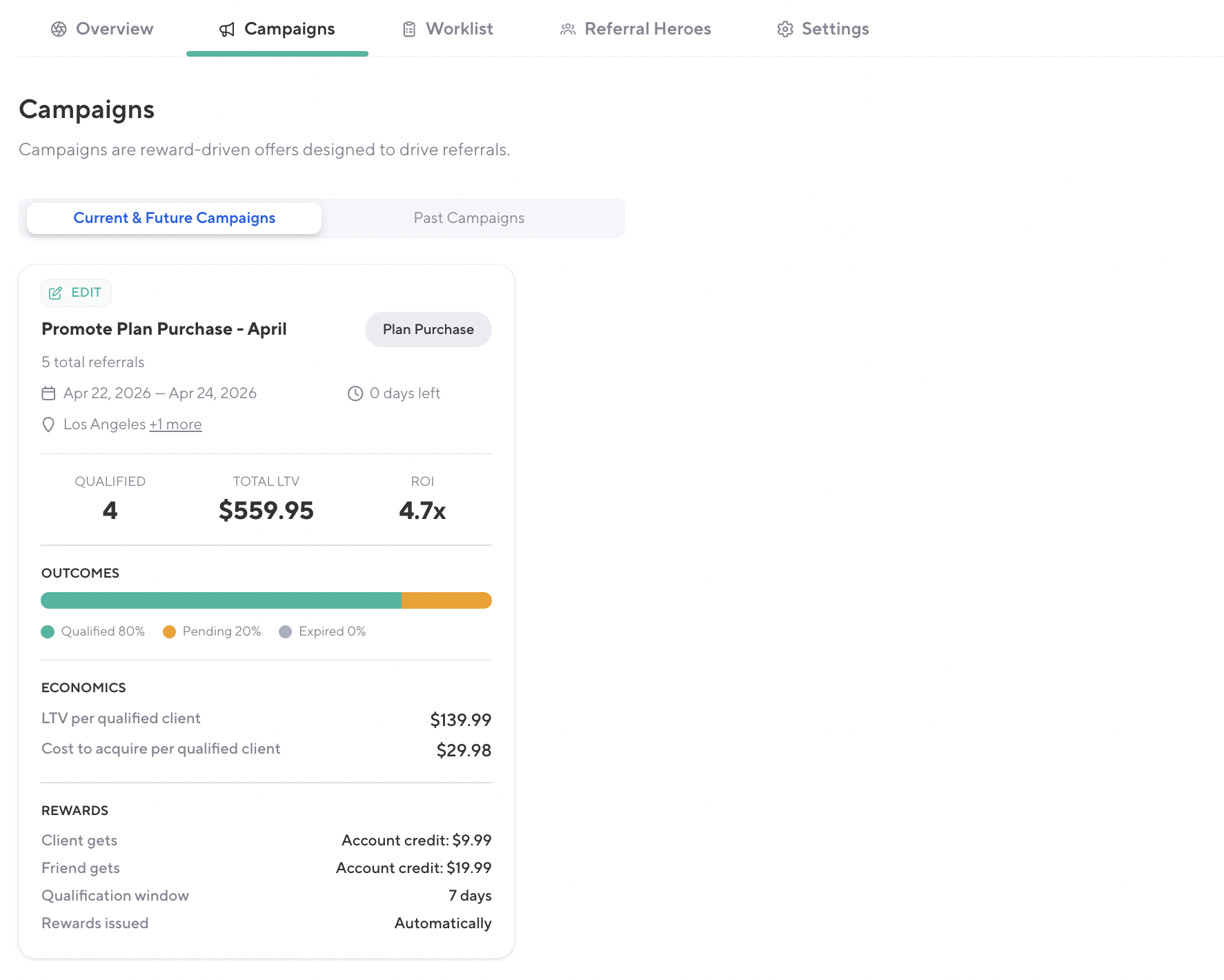
Understanding your campaign card: Each campaign card shows you Qualified (clients who completed the qualifying action), Total Referrals (clients who created an account via your link), and Total LTV (all-time revenue including tax from all qualified clients). The outcomes bar gives you a quick visual of qualified vs. pending vs. expired referrals. Economics figures at the bottom show LTV per qualified client (total revenue ÷ number of qualified clients) and cost to acquire per qualified client (total reward cost ÷ number of qualified clients).
 Video Guide on Campaigns/Referrals
Worklist Tab
The Worklist is your central hub for managing day-to-day referral activity. It's especially important when your campaign uses manual reward issuance.
Waiting to be Fulfilled contains referrals that have qualified and are waiting on a staff member to issue the reward. From here, you have three options. Fulfill as Defined issues the reward exactly as it was configured in the campaign and is included in both ROI and referral counts. Fulfill Differently lets you issue a different reward than what was configured — this is included in referral counts but excluded from ROI calculations. Not Fulfilled closes the referral without issuing any reward and excludes it from both ROI and referral counts.
Pending shows referred clients who have created an account but haven't yet completed their qualifying action. You can send a nudge directly from this section to remind them to take action before their window closes.
Expired shows referrals where the qualification window passed without the required action being completed.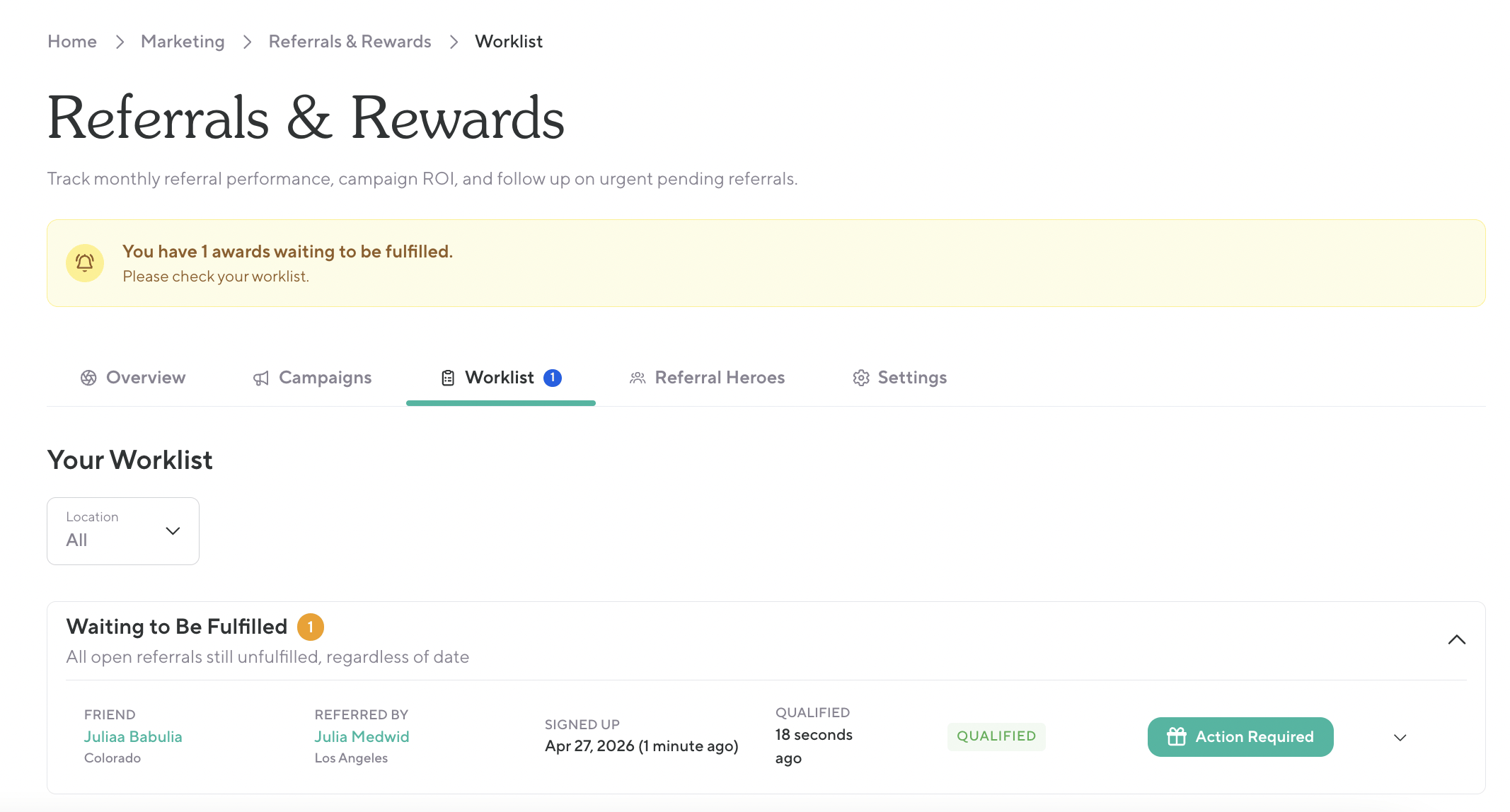
Referral Heroes Tab
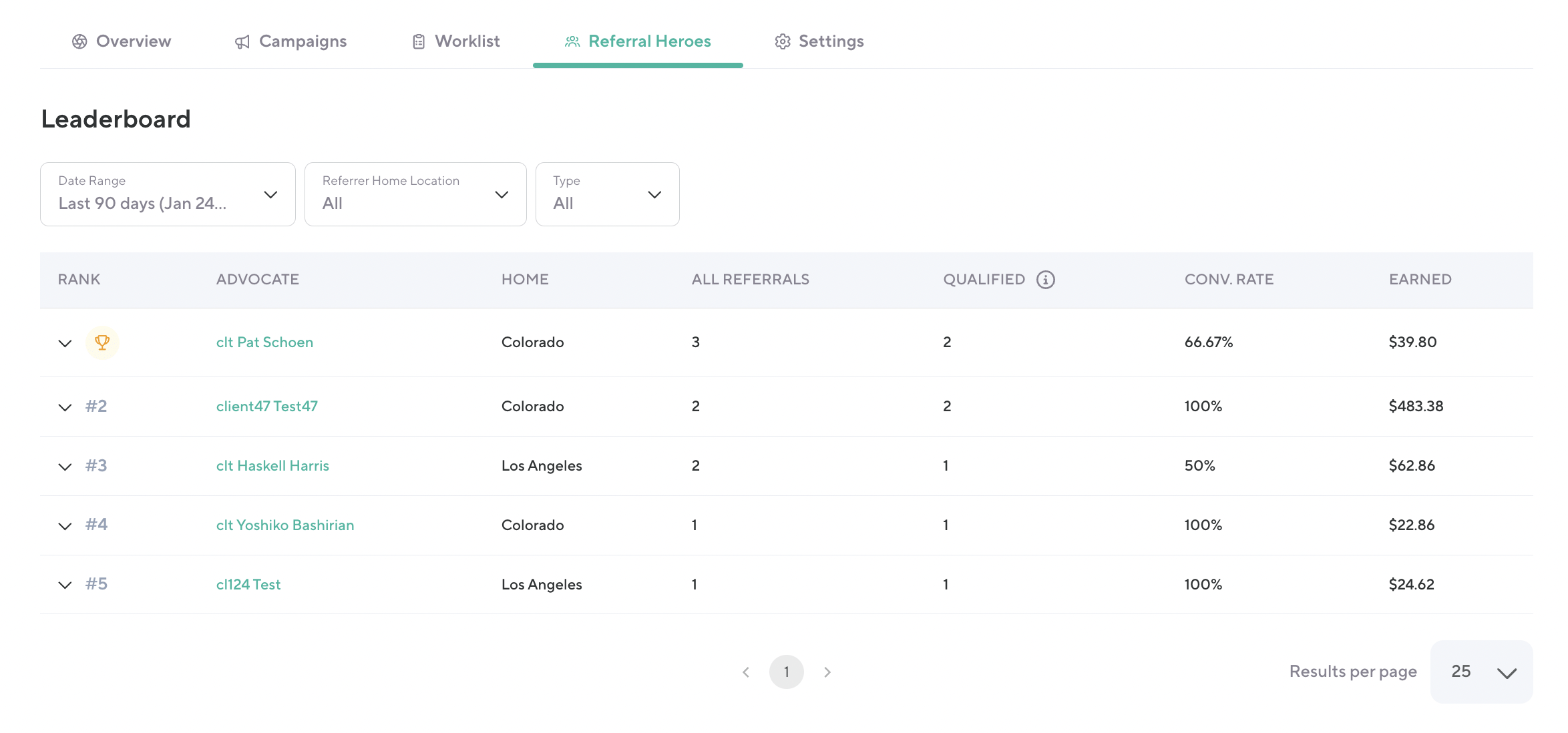
Referral Heroes replaces the legacy Referral Analytics Report and combines both campaign and organic referral data in a single view. The goal of this report is to identify your top referrers — the clients who are actively driving new business to your studio — and show you exactly how much revenue they've brought in.
The report defaults to all locations. When you filter by a specific location, it filters by the home location of the referring client, not where the qualifying action took place.
The report ranks clients by total referrals, with the top referrer marked with a trophy. For each client you'll see their name, home location, total referrals (including organic), how many of those qualified, their conversion rate, and the total revenue their referrals have earned for your studio.
Settings Tab
The Settings tab is where you assign a dollar value to non-cash reward types, such as comp passes. These values feed directly into your ROI and cost-per-acquisition calculations across all campaign reporting. Keep in mind that updating the comp pass value will apply retroactively to active and past campaigns, which may affect your historical reporting figures.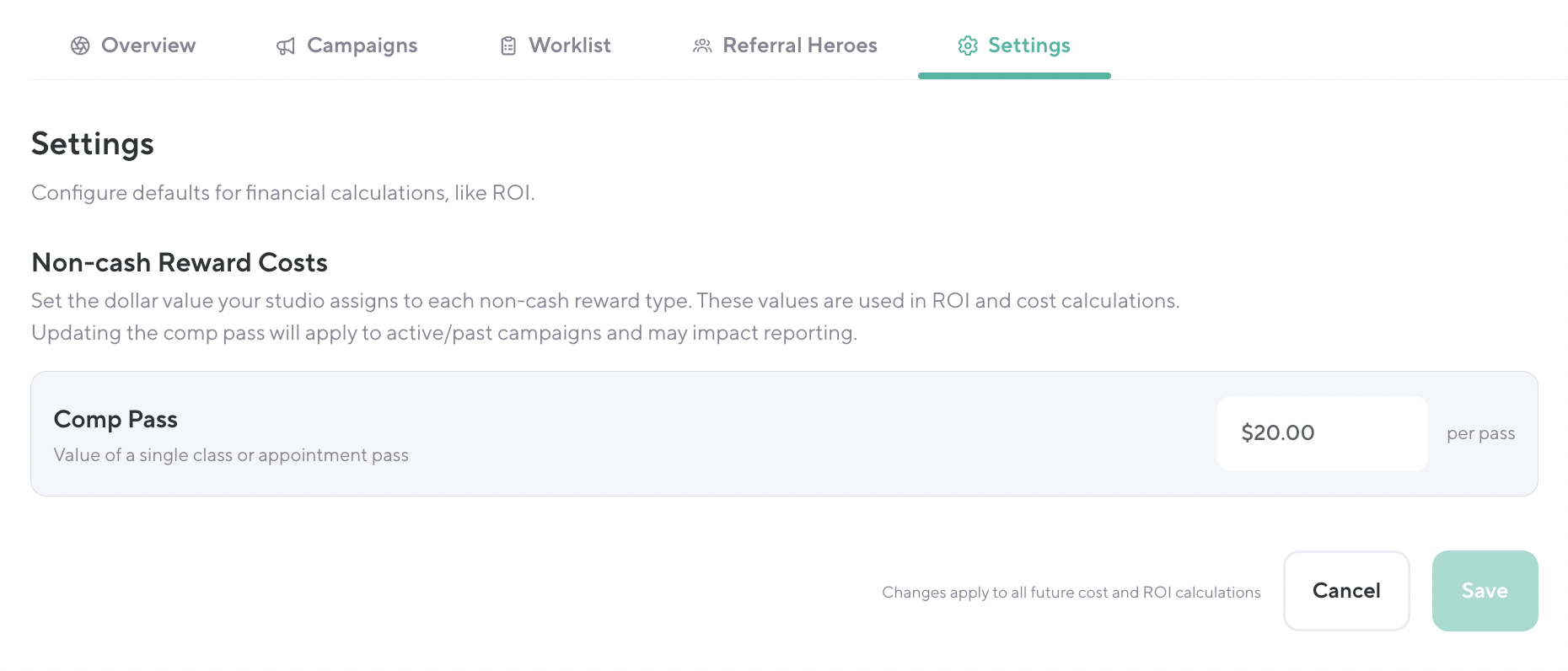
Reward Notifications
When a reward is issued — either automatically upon qualification or manually via the Worklist — both the referring client and the referred client will receive an automated email notification. These emails include dynamic details like the qualifying action completed, the campaign name, the reward description, and your studio name.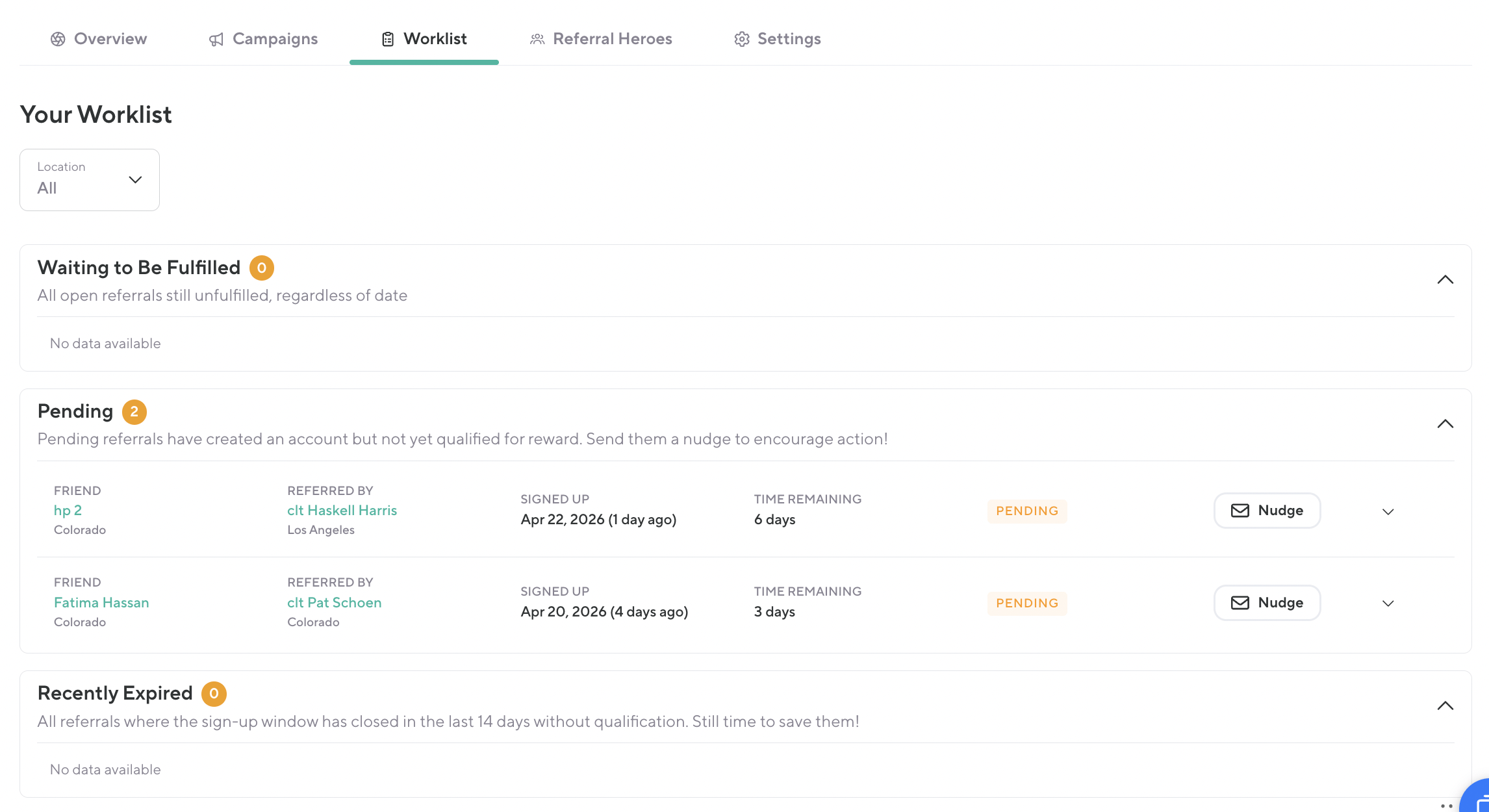
Permissions
The Referral Campaigns permission grants the ability to create campaigns, manage their full lifecycle, issue rewards, and nudge pending clients. Assign this to the roles at your studio that should have full management access.
For franchise businesses, campaigns are managed at the corporate level with one shared set of campaigns across all locations. Business Owners and Business Managers have full access to create and manage campaigns across all locations. Franchise Owners, Location Managers, and all other staff roles have view-only access by default.
Frequently Asked Questions
Can I run more than one campaign at the same time?
Not in this initial release. Only one campaign can be active at a time. You can schedule future campaigns to begin automatically when your current one ends.
What happens if a referred client doesn't complete the qualifying action in time?
The referral will move to Expired status. No reward is issued to either party. Staff can still choose to manually fulfill a reward via the Worklist if they'd like to make an exception.
What if the referred client completes the qualifying action at a non-participating location?
The referral will not qualify. The referred client must complete their action at one of the locations selected when the campaign was created.
How do I nudge a client who hasn't qualified yet?
Go to the Worklist tab and find the referral under Pending. From there you'll see the option to send them a nudge.
Where did the Referral Analytics Report go?
It has been replaced by the Referral Heroes tab within Marketing → Referrals & Rewards. You'll find all of the same data there, plus organic referrals combined into one report.
Does Fulfill Differently affect my ROI?
Yes. Referrals fulfilled with a different reward than configured are included in referral counts but excluded from ROI calculations to keep your data accurate.
Will editing the comp pass value in Settings affect past data?
Yes. Updating the comp pass dollar value in Settings applies to both active and past campaigns, so it may change historical ROI and cost figures in your reports.