
Overview
You can set a plan to start on a specific future date. Every client who buys the plan before that date stays Pending and activates together on that date. Anyone who buys after the date activates immediately.
This is useful any time you want a group of clients to start on the same day, such as:
- Opening a new location: Sell presale or founding memberships that activate on opening day.
- Fixed-date programs: Run a challenge, session, or series plan where everyone starts together, like a 6-week challenge that kicks off January 5.
- Seasonal or semester promotions: Offer a summer special or a semester pass that starts on a set date.
This works for both recurring and non-recurring plans.
Set Up a Plan to Start on a Specific Date
Follow these steps:
- Under Services & Plans in the left menu, choose Plan Management.
- Select Add New Plan.
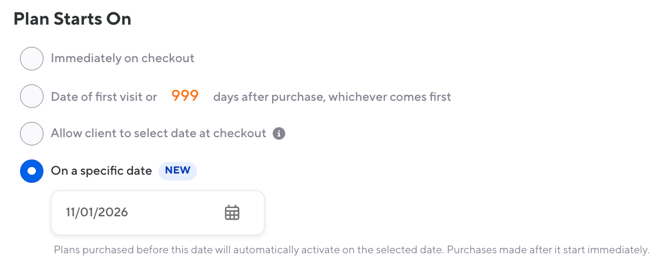
- In the Description & Availability step, go to Plan Starts On and select On a specific date.
- Choose the activation date.
- Finish creating the plan and save.
First Payment Due is locked to Immediately on checkout for these plans. Clients pay when they buy, and for recurring plans, their next payment is based on the activation date, not the purchase date.
Plans activate based on the purchase location’s timezone.
☝️ Important: You can only choose “On a specific date” when creating a new plan. Existing plans can’t be switched to it, and once it’s set, it can’t be switched to another option.
After the Activation Date
The plan stays available for sale after the activation date unless you deactivate it.
Location-Specific Pricing (Multi-Location and Franchise)
If your plan uses location-specific pricing, set the plan to “On a specific date,” and each location sets its own activation date. For example, a new location can set its opening date without affecting your other locations.
Follow these steps:
- Open the plan and go to the Location Settings tab.
- Select Edit Activation Date for the location.
- Choose the date and save.
On the main plan details, the date field is disabled and links to Location Settings.
Edit the Activation Date
You can change the activation date any time before it arrives.
Follow these steps:
- Under Services & Plans in the left menu, choose Plan Management.
- Open the plan.
- In the Plan Start & First Payment section, click Edit.
- Choose the new date and save.
Once the date passes, it’s locked, and you can’t set it to a past date. If you need a new future start after that, create a new plan.
When you edit the date:
- All pending plans and all future purchases update to the new date. (The usual “Future Purchases Only” and “Past and Future Purchases” options don’t appear for these plans.)
- Existing bookings aren’t changed. The confirmation message reminds you to review any bookings that fall before the new activation date.
- If you changed an individual client’s start date from their profile, the plan-level change won’t override it.
- Clients receive an email with their new start date. To review or edit it, go to Transactional Notifications and find “Sent when a plan activation date has been updated” under Plans.
Client Profile
A plan bought before its activation date shows as Pending, and Starts On shows the activation date.
From the client profile, you can:
- Change an individual client’s start date.
- Book the client into classes using the pending plan. As with any plan, front desk staff can override the booking window.
☝️ Important: You can’t process a plan change while a plan is pending.
If a client buys the same plan twice, the plan’s purchaser list shows it as two client plans.
Reporting
To see pending plans, open the Active Plans Report and filter by Pending.
Client Experience
- Clients can buy the plan on the widget, Walla App, and Branded App before the activation date. It shows as Pending until that date.
- Clients can book ahead with a pending plan, as long as the class is within your booking window.
- Clients can buy the plan while booking a class, but only for a class that starts on or after the activation date (or once that date has passed).
- Clients receive an email if you change their activation date.
Pro tip: Put the start date in the plan name or description, like “Spring Session (Starts March 2),” so clients know when their plan begins before they buy.