---
title: Stripe Payment Terminal Setup Guide
description: Learn how to order your Stripe Terminal through Walla. Submit a quick request form and our team will place the order and ship your card reader to you.
---
[Skip to content](https://support.hellowalla.com/stripe-payment-terminal-setup-guide#main-content)
English
Show submenu for translations

Open main navigation
Close main navigation
- English
Show submenu for translations
How can we help you?
- There are no suggestions because the search field is empty.
1. [Walla Knowledge Base](https://support.hellowalla.com/?hsLang=en)
2. [Payments](https://support.hellowalla.com/payments?hsLang=en)
3. [💰 Payments](https://support.hellowalla.com/payments?hsLang=en#payments)
June 19, 2026
# Stripe Payment Terminal Setup Guide
If requested, Walla will send you a Stripe terminal to connect with your Walla account to accept in-studio payments. This guide walks you through everything from physical setup to processing your first transaction.
### **Step 1: Physical Setup**
Before connecting your terminal to Walla, get the hardware ready:
1. Install the terminal batteries.
2. *Note: It takes significant force to open the battery door.*
3. Connect the terminal to charge using an AC adapter (wall outlet) or USB port.
4. Once charged, power on the terminal and wait for it to boot up.
### **Understanding Terminal Status Labels**
The Stripe terminal uses two status labels to indicate its current state:
- **Connected:** The terminal is online, paired to your system, and ready to accept payments.
- **Available:** The terminal is connected but not actively processing a payment — it’s awaiting a transaction request.
**Note:** Don’t worry if the terminal shows “Not Connected” under Business Settings. The terminal connects to Walla when you select **Read Card from Terminal** at checkout — not passively. It will show “Connected” during an active transaction and return to “Not Connected” once complete. This is expected behavior.
### **Step 2: Register & Pair Your Terminal in Walla**
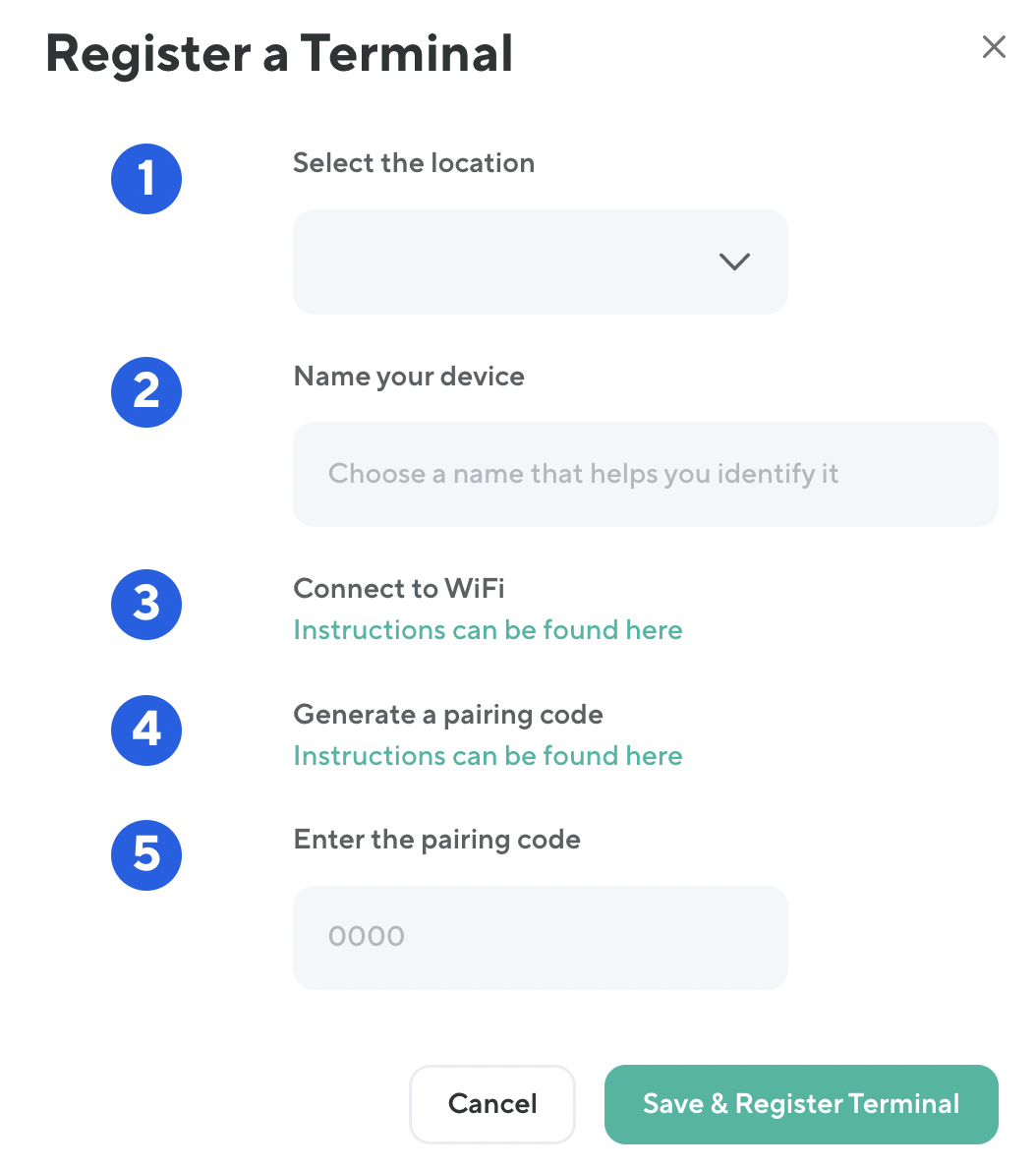
Follow these five steps to register your terminal:
**1. Register a Terminal**
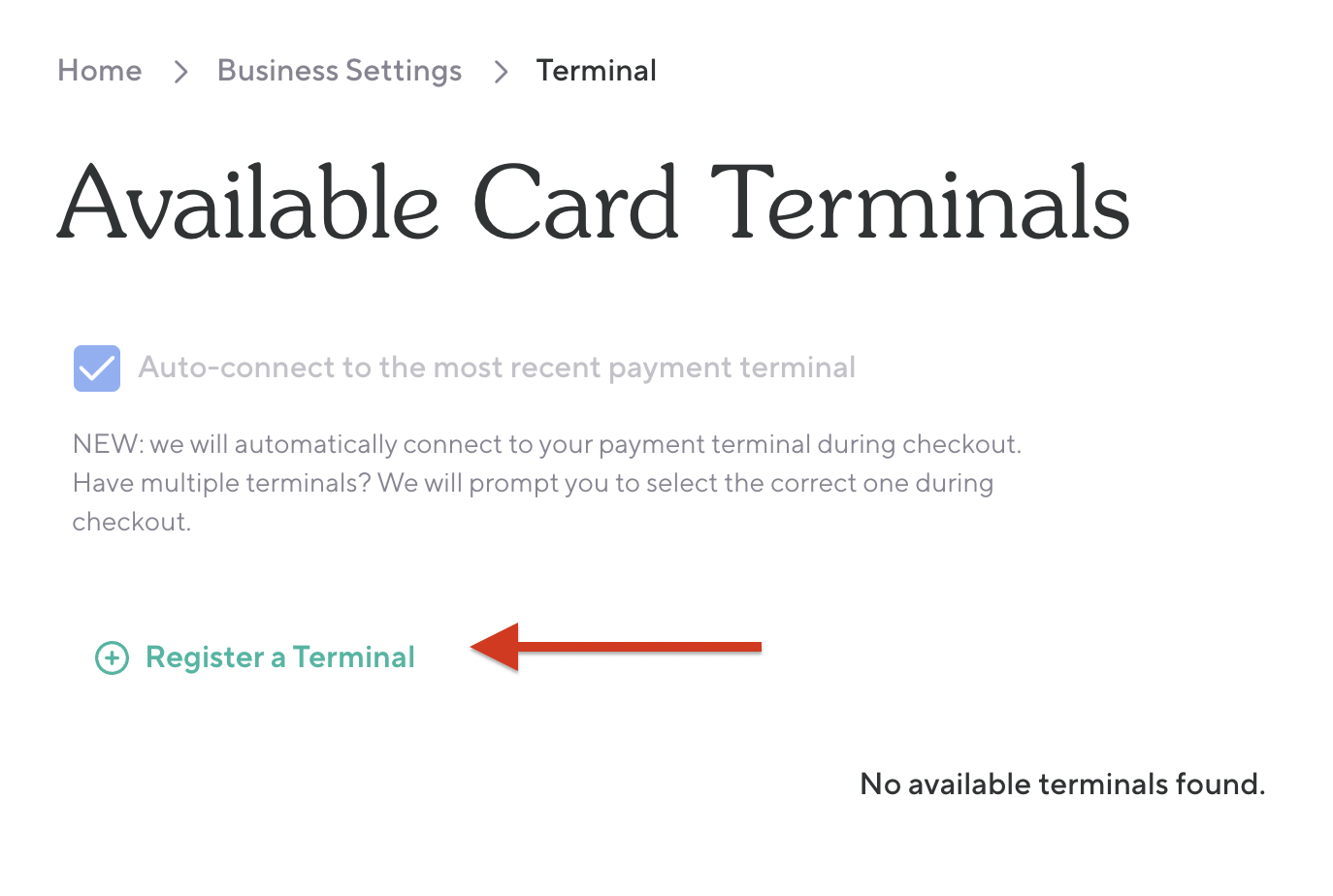
1. Go to **Business Settings \> Payment Terminal**.
2. Select **Register a Terminal**.
3. If your business has multiple locations, choose the appropriate location from the drop-down menu. Single-location studios can skip this — the terminal will auto-associate with your default location.
**2. Name the Device**
Give your terminal a recognizable name (e.g., the location name). This helps you manage multiple devices.
**3. Connect to Wi-Fi**
Your terminal must connect to the **same Wi-Fi network** as your studio computer or tablet.
1. Swipe right from the left edge of the reader screen to reveal the **Settings** button.
2. Tap **Settings** and enter the admin PIN: **07139**.
3. From here, manage your Wi-Fi settings and connect to your network.
**4. Generate a Pairing Code**
Once connected to Wi-Fi, the terminal may apply updates. After updates complete, a **three-word pairing code** will appear on the screen.
**If the pairing code doesn’t appear:** Swipe right from the left edge of the screen, tap **Settings**, and enter PIN **07139** to manually generate a pairing code.
**5. Enter the Pairing Code & Complete Registration**
1. Enter the three-word pairing code into the **Enter the pairing code** field in Walla.
2. Select **Register** to complete setup.
The terminal will apply any remaining updates and display a rainbow screen with “Stripe.” It’s now live and ready for payment processing! 🎉
### **Step 3: Process a Transaction**
To use the terminal at checkout:
1. Select **Buy** in the upper right of the Walla dashboard and choose the client and location.
2. Fill out the necessary purchase details.
3. Select **Use Terminal**, then scroll down and select the green **Collect Payment** button.
4. The purchase amount will appear on the terminal screen and the customer can complete the sale by tapping, inserting, or swiping their card.
**IPv4 Router Requirement**
The Stripe terminal only supports **IPv4 networks**. To confirm your network is compatible, visit [i-p.show](https://i-p.show/) and check your IP address format.
- **IPv4 (supported):** 1–3 numbers in 4 sections separated by periods. Examples: 1.2.3.4, 123.214.212.144, 64.82.220.151
- **IPv6 (not supported):** Uses colons and longer alphanumeric strings. Examples: 2606:4708:10::6816:2868, 2a00:1458:4009:817::200e
If your studio is on an IPv6 network, you’ll need to switch to an IPv4-compatible router or network before the terminal can connect.
**Need help?** If you run into any issues during setup, our support team is happy to assist. Reach out and we’ll get you up and running.
- [Getting Started with Walla](https://support.hellowalla.com/getting-started-with-walla?hsLang=en#main-content)
- [🤝 Onboarding](https://support.hellowalla.com/getting-started-with-walla?hsLang=en#onboarding)
- [Migrations](https://support.hellowalla.com/getting-started-with-walla?hsLang=en#migrations)
- [Products](https://support.hellowalla.com/products?hsLang=en)
- [Branded App](https://support.hellowalla.com/branded-app?hsLang=en)
- [Classes](https://support.hellowalla.com/classes?hsLang=en)
- [Managing Your Studio](https://support.hellowalla.com/managing-your-studio?hsLang=en)
- [Integrations](https://support.hellowalla.com/integrations?hsLang=en)
- [Enrollments](https://support.hellowalla.com/enrollments?hsLang=en)
- [WallaPredict](https://support.hellowalla.com/wallapredict?hsLang=en)
- [Franchise Features](https://support.hellowalla.com/franchise-features?hsLang=en)
- [Clients](https://support.hellowalla.com/clients?hsLang=en)
- [Sales & Marketing Center](https://support.hellowalla.com/sales-marketing-center?hsLang=en#main-content)
- [Sales Pipeline](https://support.hellowalla.com/sales-marketing-center?hsLang=en#sales-pipeline)
- [Conditions](https://support.hellowalla.com/sales-marketing-center?hsLang=en#conditions)
- [Builds](https://support.hellowalla.com/sales-marketing-center?hsLang=en#builds)
- [Google and Meta Integration](https://support.hellowalla.com/sales-marketing-center?hsLang=en#google-and-meta-integration)
- [Journeys and Audiences](https://support.hellowalla.com/sales-marketing-center?hsLang=en#journeys-and-audiences)
- [Virtual](https://support.hellowalla.com/virtual?hsLang=en)
- [Payments](https://support.hellowalla.com/payments?hsLang=en#main-content)
- [💰 Payments](https://support.hellowalla.com/payments?hsLang=en#payments)
- [Walla App](https://support.hellowalla.com/walla-app?hsLang=en)
- [Packs & Plans](https://support.hellowalla.com/packs-plans?hsLang=en)
- [Appointments](https://support.hellowalla.com/appointments?hsLang=en)
- [For Studio Clients](https://support.hellowalla.com/for-studio-clients?hsLang=en#main-content)
- [Using the Walla App](https://support.hellowalla.com/for-studio-clients?hsLang=en#using-the-walla-app)
- [Your Walla Login](https://support.hellowalla.com/for-studio-clients?hsLang=en#your-walla-login)
- [Using Walla Widgets](https://support.hellowalla.com/for-studio-clients?hsLang=en#using-walla-widgets)
- [Staff](https://support.hellowalla.com/staff?hsLang=en)
- [Reports](https://support.hellowalla.com/reports?hsLang=en)
- [Client Communication](https://support.hellowalla.com/client-communication?hsLang=en)
- [Memberships](https://support.hellowalla.com/memberships?hsLang=en)
- [Walla Websites](https://support.hellowalla.com/walla-websites?hsLang=en)
- [Walla FAQ's](https://support.hellowalla.com/walla-faqs?hsLang=en)
- [Walla Customer Service](https://support.hellowalla.com/walla-customer-service?hsLang=en)
- [Walla Subscription](https://support.hellowalla.com/walla-subscription?hsLang=en)
- [Merchant](https://support.hellowalla.com/merchant?hsLang=en)
- [Widgets](https://support.hellowalla.com/widgets?hsLang=en)
- [Retention Suite](https://support.hellowalla.com/retention-suite?hsLang=en)
[](https://www.hellowalla.com/)
[mailto:support@hellowalla.com](mailto:support@hellowalla.com)
Copyright © 2026, Walla Software