
Your Branded App receives new features and bug fixes through app updates that Walla submits to Apple. Apple accepts these updates only when your Apple Developer account has accepted Apple's latest agreements. Apple updates these agreements from time to time, and each new version needs to be accepted, even if an earlier instance has been accepted.
Apple sends an email to the Account Holder when a new agreement is ready. If you missed or lost that email, you can check for and accept pending agreements yourself from the account through Apple at any time.
Who can accept the agreements
Only the person with the Account Holder role on your Apple Developer account can accept Apple's agreements. This is the person who enrolled your business in the Apple Developer Program.
Not sure who your Account Holder is?
- Log in to App Store Connect.
- Select Users and Access.
- Find the person whose role shows Account Holder.
Your Apple Developer account may appear under your legal business name (for example, your LLC name) instead of your studio name.
If your Account Holder no longer works with your business, contact Apple Developer Support to transfer the Account Holder role. Walla can't change this role for you.
Check for and accept pending agreements
The Account Holder completes both of these steps.
Step 1: Apple Developer account
- Log in at developer.apple.com/account.
- If a banner asks you to review an updated agreement, open it.
- Review and accept the Apple Developer Program License Agreement.
Step 2: App Store Connect
- Log in at App Store Connect.
- Open the Business section (formerly Agreements, Tax, and Banking).
- Review and accept any pending agreements, including the Paid Applications Schedule.
When all agreements show as Active, nothing else is needed in Apple.
❌ BLOCKED: Agreement Signing Required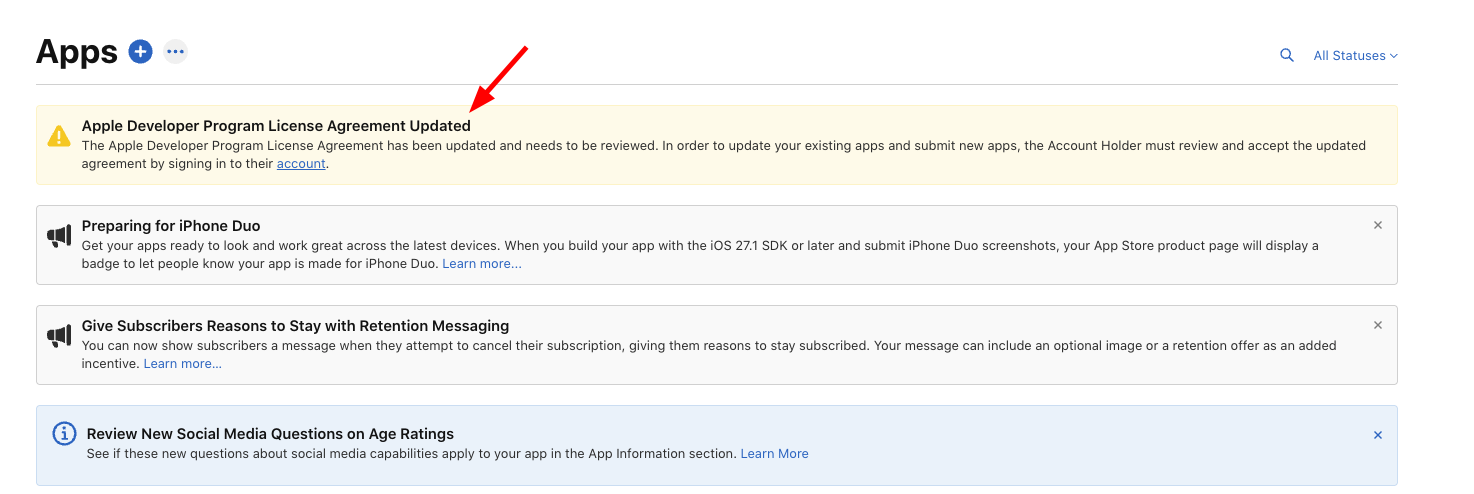
✅ GOOD: No Required Agreements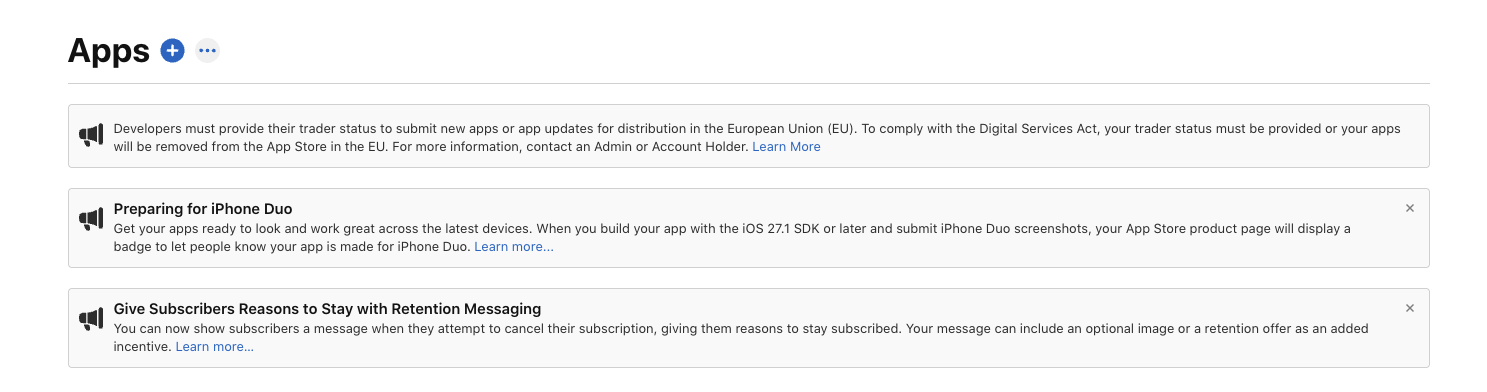
After you accept
Our app team checks for accepted agreements every business day, so there’s no need to contact Walla Support once they’re accepted. After the agreements clear, we submit the app update, and Apple reviews it before it appears in the App Store.
Keep your app eligible for updates- Accept new agreements quickly: Apple holds all app updates, including bug fixes, until the latest agreements are accepted.
- Keep your membership active: the Apple Developer Program has an annual fee. If your membership lapses, your app can't receive updates.
- Keep Walla's access: don't remove the Walla Admin user (appadmin@hellowalla.com) from App Store Connect. Walla needs this access to submit your app updates.
- Watch for Apple's emails: Apple sends agreement and renewal emails to the email address on the Account Holder's Apple Account. Make sure someone at your business checks that inbox.
Apple resources
For help with your Apple Account (formerly Apple ID) or Apple Developer account, contact Apple directly:
- Set up or manage your Apple Account
- Developer Account Help
- Contact Apple Developer Support: for questions about your developer membership, agreements, or the Account Holder role
- Contact Apple Support: for help with your Apple Account, such as logging in or recovering access